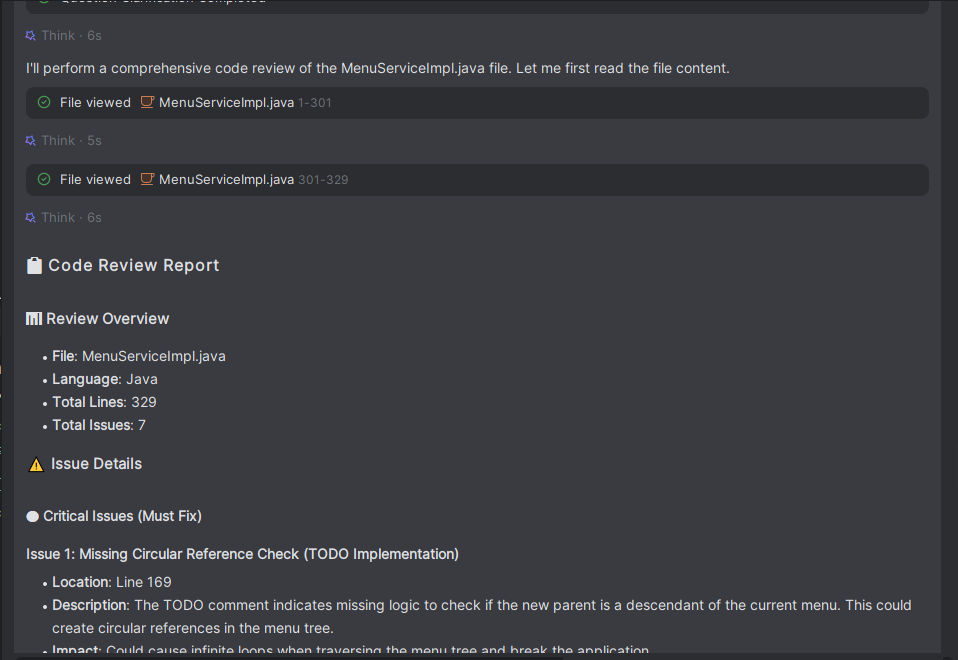
Instruction Orchestration
Introduction
In the past, instructions could only be executed individually. To complete a task through the coordination of multiple instructions, you had to operate them one by one manually, which was inefficient. After introducing the instruction orchestration feature, you can combine multiple custom instructions into a new instruction set in a specific order. When you select this orchestrated instruction in the editor, the model executes the instructions one by one strictly following the predefined order. In addition, during execution you can flexibly configure the input parameters of each instruction: it supports reusing the original question, using a fixed question, or customizing a new question to input midway through the execution.
Orchestrating Instructions
- Click "Settings > Instruction Management > Orchestration".
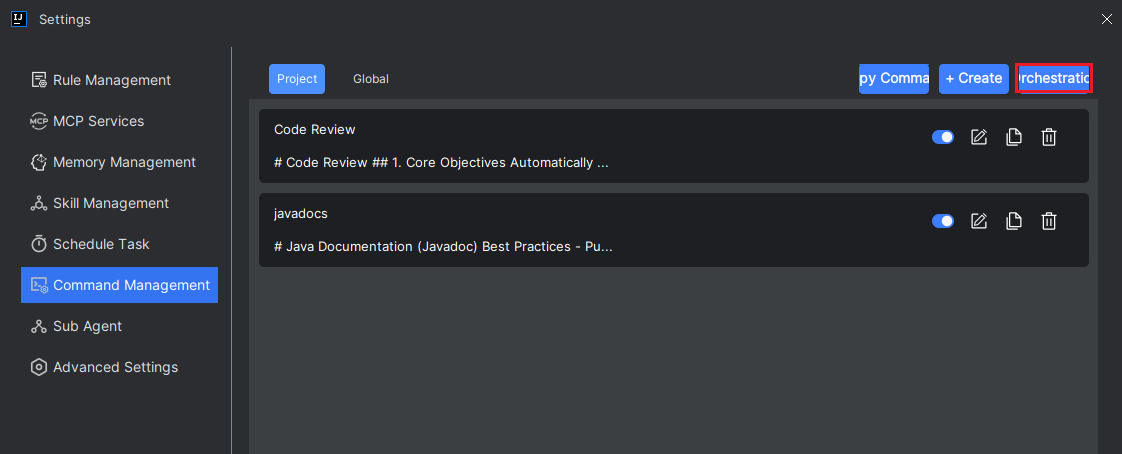
- Enter a name and description, then click "Add Instruction".
Note: You must first create custom instructions before they can be selected.
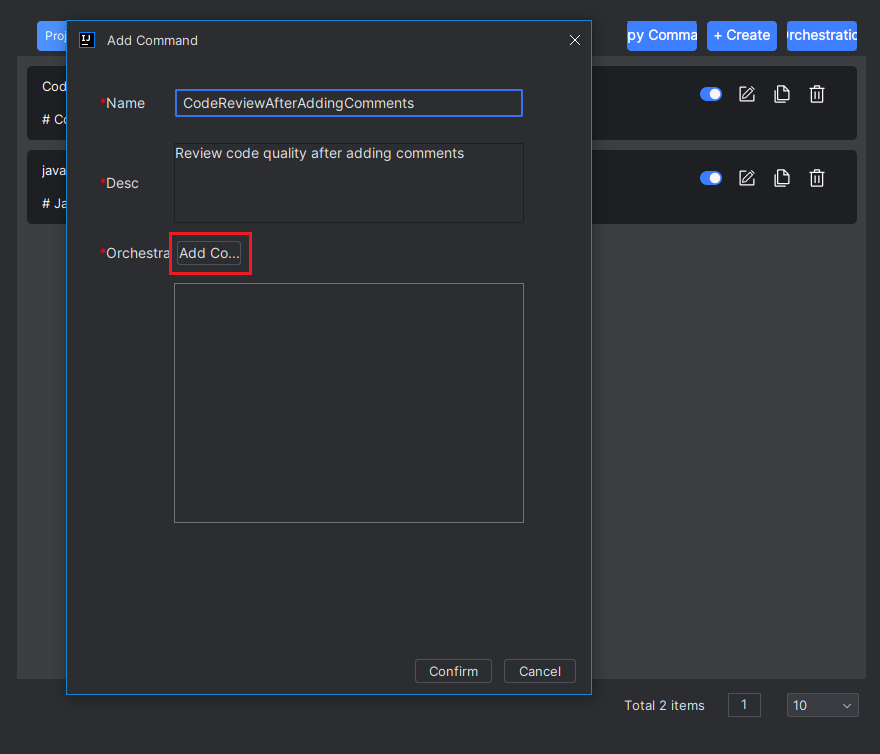
- Check the instructions you want to orchestrate under "Global" or "Project".
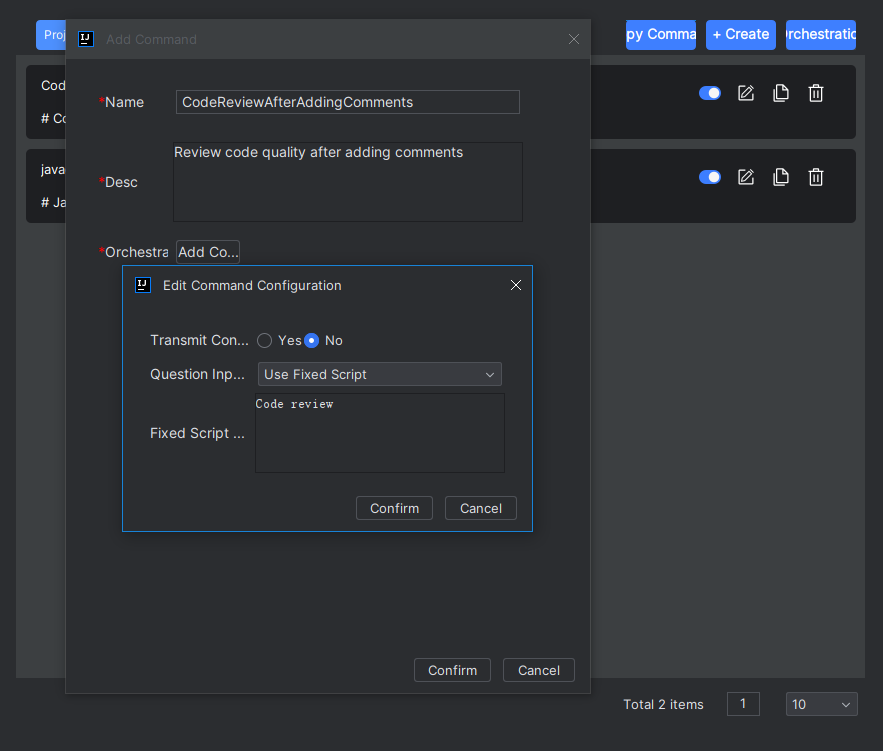
- Click the "Edit" button of an instruction to configure its relevant settings. After the configuration is complete, click "Confirm".
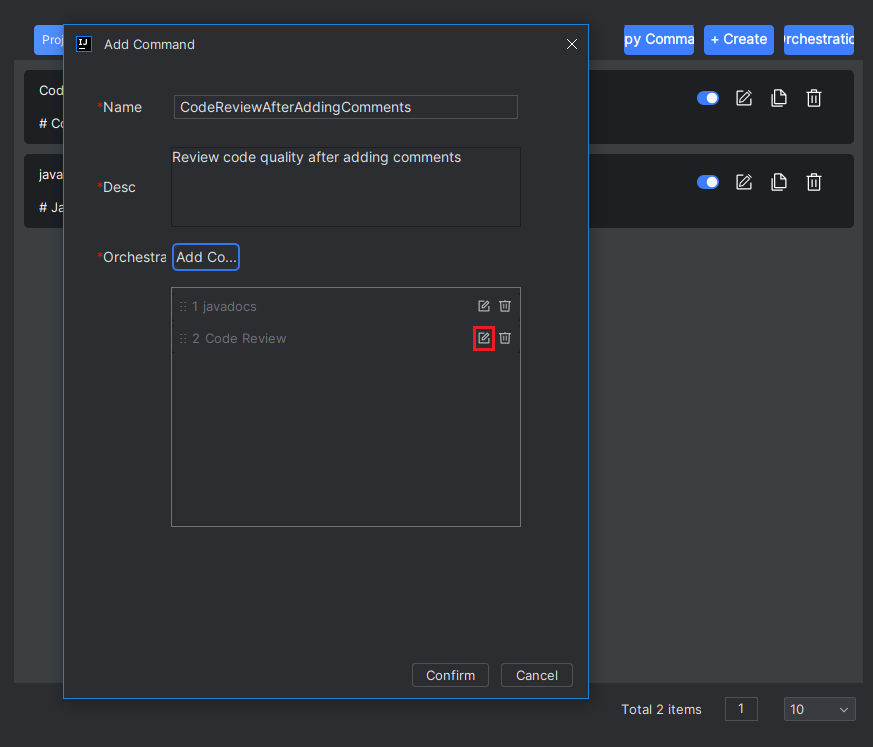
Configuration Description:
Pass Context or Not: Selecting "Yes" means the system will pass the execution result of the preceding instruction as context to the current instruction; selecting "No" means the preceding result will not be passed, and the current instruction will execute independently in an environment without context. Question Input Mode:
- Reuse Initial Question: When executing this instruction, it will directly use the question or task description that the user first entered in the input box.
- Use Fixed Script: You need to preset a fixed question or task description in the "Fixed Script Content" field of the current panel; during execution the instruction will automatically complete based on this fixed content.
- Input During Process: When execution reaches this instruction, a question clarification box will pop up on the page, and the instruction will continue executing only after you enter the specific question or task.
Please note: For the first instruction to be executed, the question input mode defaults to "Reuse Initial Question", and setting it to any other option will not take effect.
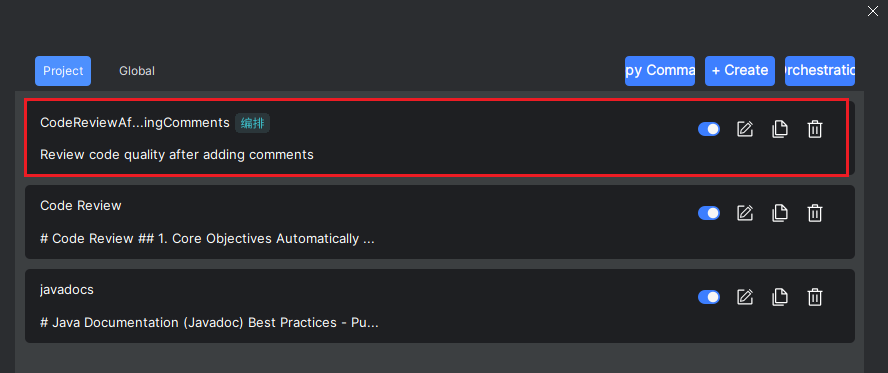
- Enable the instruction. It is enabled by default; if you do not need it, you can turn it off.
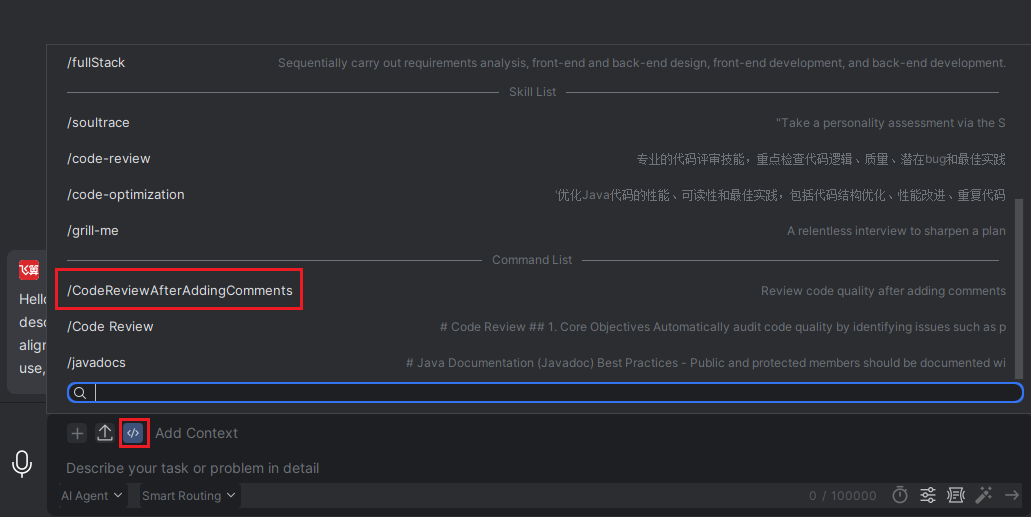
- Return to the input box page, and in the input box, click "Add Instruction" to select the instruction you just orchestrated.
- Then enter the task or question for this time.
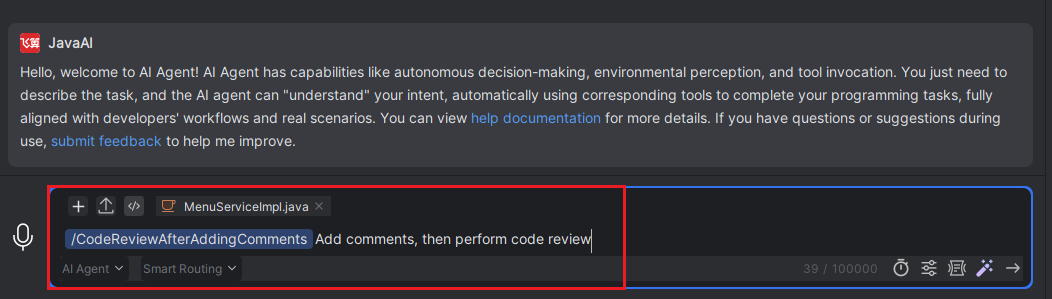
- View the execution result; the first instruction has been completed.
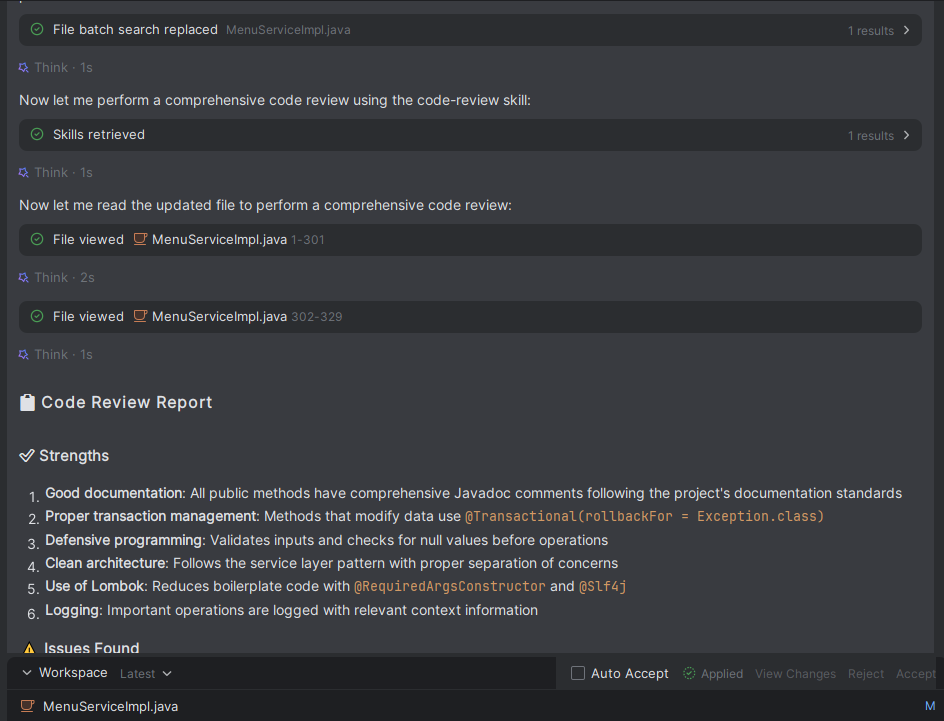
- Continue to execute the second instruction.
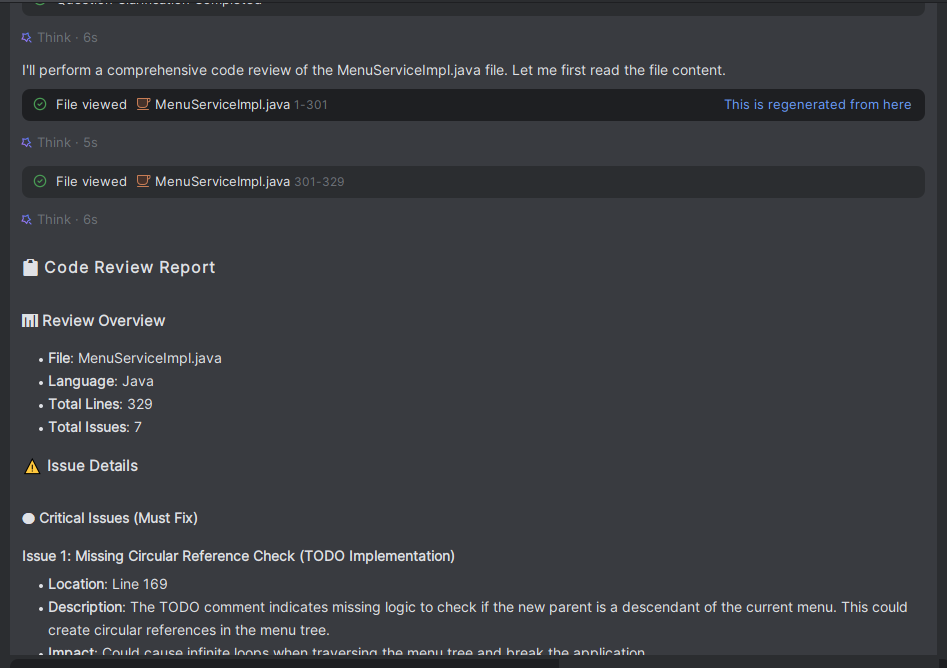
Input During Process
- If the input question mode configured for the instruction is "Input During Process".
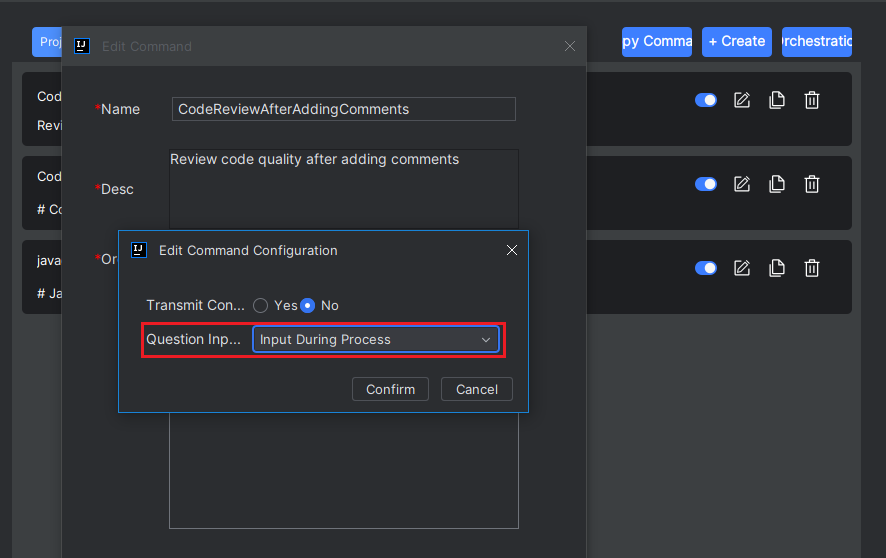
- Then, before the instruction executes, you need to enter a new task or question in the question clarification box, select it, and click "Continue".
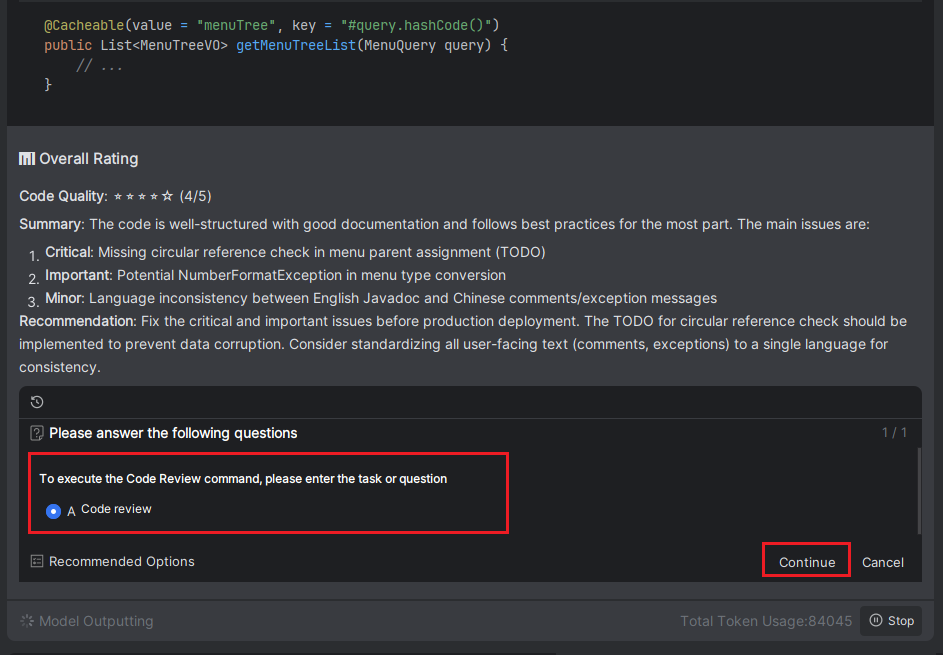
- The instruction will complete based on the task or question you have entered.