
Skill Market
Introduction
You can search for relevant skills on the Skill Market at https://skills.sh/, download them, and import them into the plugin to use. Currently, most content in the Skill Market is in English. If needed, you can translate the SKILL.md file content.
Install Node.js Environment
- Open the Node.js official website (https://nodejs.org/zh-cn).
- Click the "LTS" button to download the Windows installer (.msi format).
- Install it step by step.
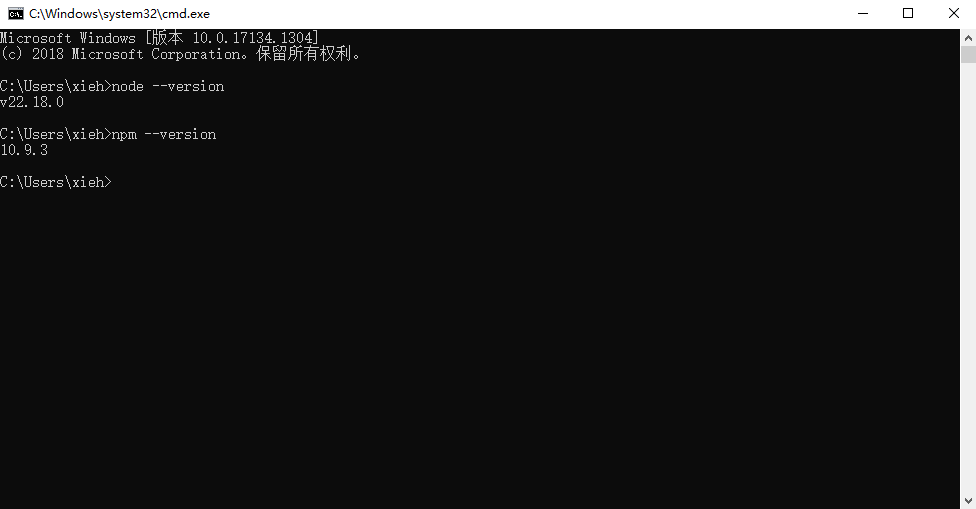
- After installation, check the Node.js version. Open the terminal or command prompt and enter the following command:
node --version. A version number should be displayed. - Check the npm version. Enter the following command:
npm --version. A version number should be displayed.
Install Git Environment
- Visit the Git official download page (https://git-scm.com/download/win).
- Click "Click here to download" to download the latest .exe program.
- Double-click the downloaded .exe file and install it according to the following steps (most options can be kept as default):
- Select Installation Location: It is recommended to keep the default, or select a path you are familiar with (try not to include Chinese characters in the path).
- Select Components: The default checkboxes are sufficient. It is recommended to keep "Git Bash Here" (to open the command line conveniently via right-click in a folder).
- Select Default Editor: Git uses Vim by default. If you are not familiar with Vim, you can select your commonly used editor (such as Notepad, VS Code, etc.) from the dropdown.
- Adjust PATH Environment Variable: It is recommended to select the second option, "Git from the command line and also from 3rd-party software", so you can use Git directly in Windows CMD or PowerShell.
- Select HTTPS Transport Backend: Keep the default "Use the OpenSSL library".
- Line Ending Configuration: It is recommended to select "Checkout as-is, commit Unix-style line endings" (keep the original format when pulling code, convert to Unix style when committing), which is the most compatible option.
- Terminal Emulator: It is recommended to select "Use MinTTY (the default terminal of Git Bash)" for a better experience.
- Subsequent Steps: Click Next all the way to Install, then click Finish to complete.
- Verify the installation
- Press
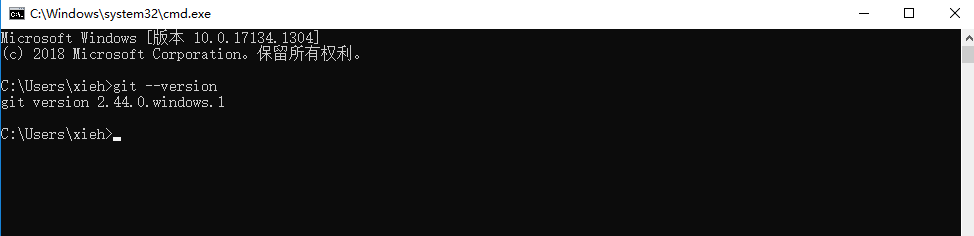
Win + R, typecmdto open the command prompt (or find and open Git Bash from the Start menu), and enter the following command:git --version - If a version number similar to
git version 2.xx.xis output, the installation was successful.
Download via Command Line
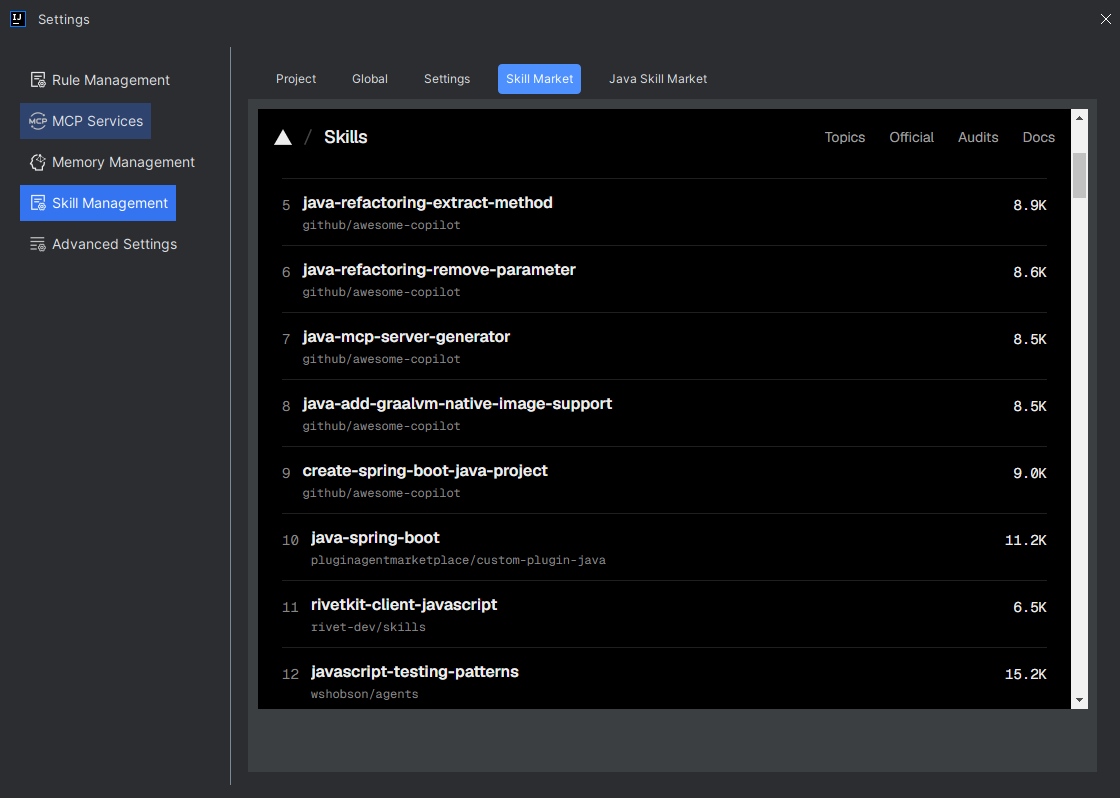
- Open Settings, select Skill Management > Skill Market, search for and select the corresponding skill, and click to view its details.
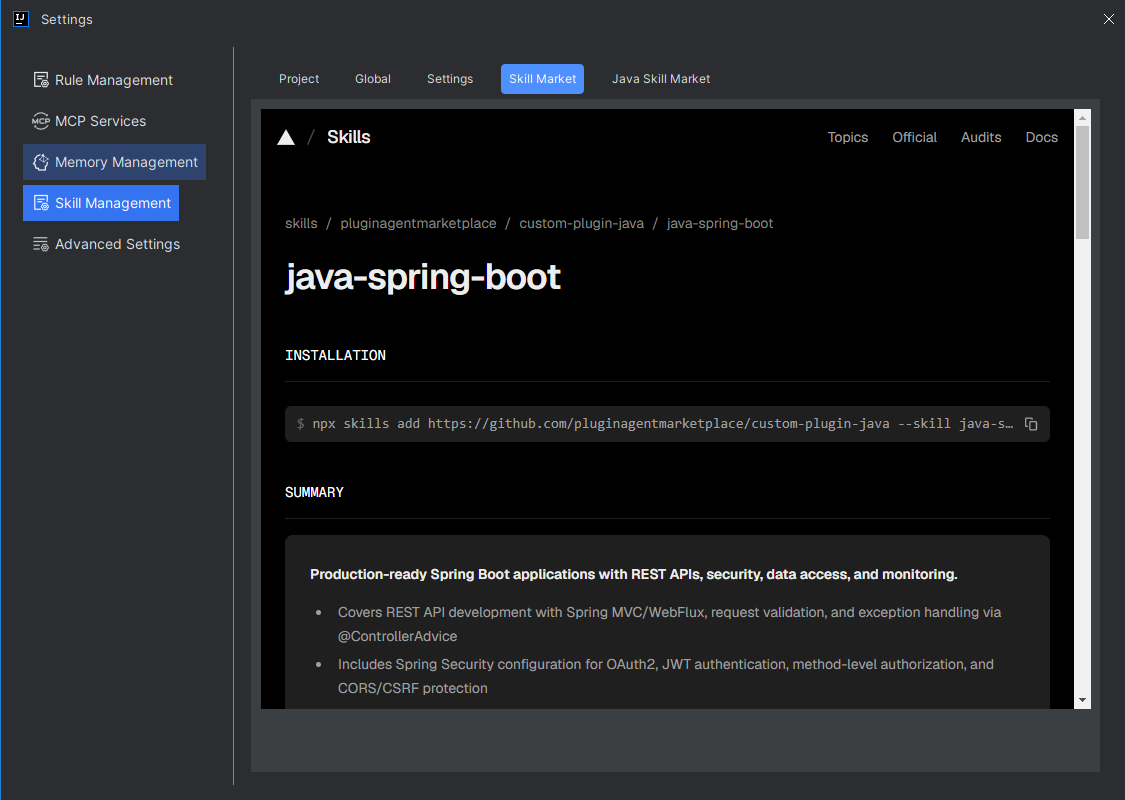
- Double-click the command line, and it will be automatically copied.
- Open the system's Command Prompt tool via cmd, right-click and "Paste" the command line, then press "Enter" to execute.
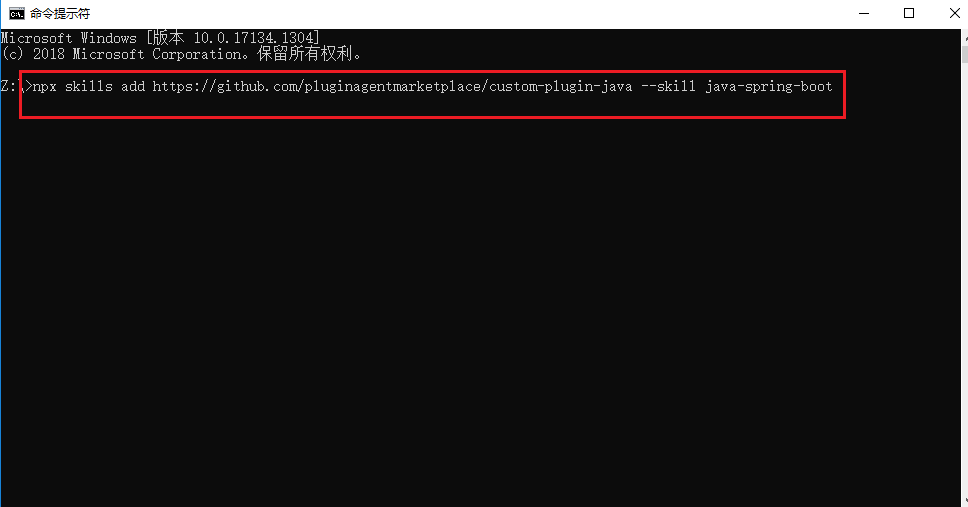
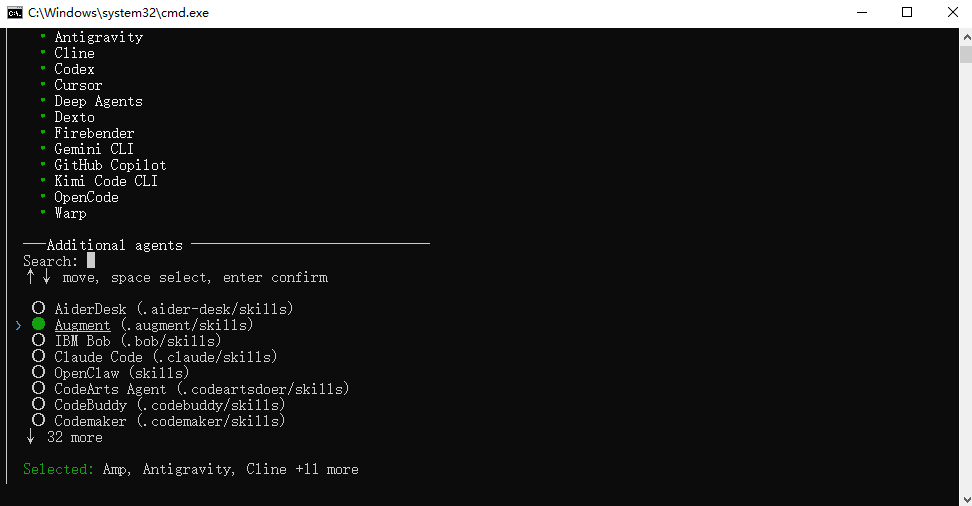
- Select the directory where the files are stored. Use the up/down arrow keys to move and select, then press the "Spacebar" to select the directory. The selected directory will display a green icon. Then press "Enter".
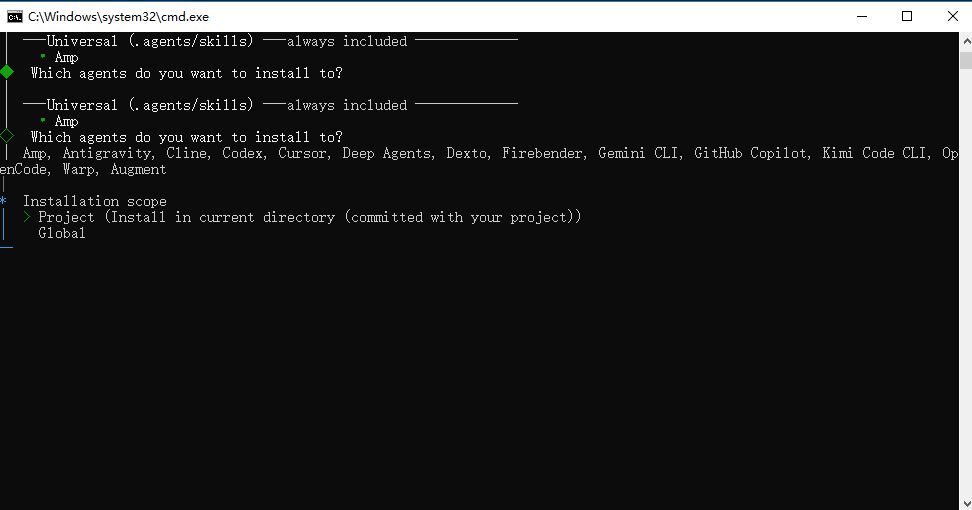
- Select the scope of the skill, whether it is "Project" or "Global", then press "Enter".
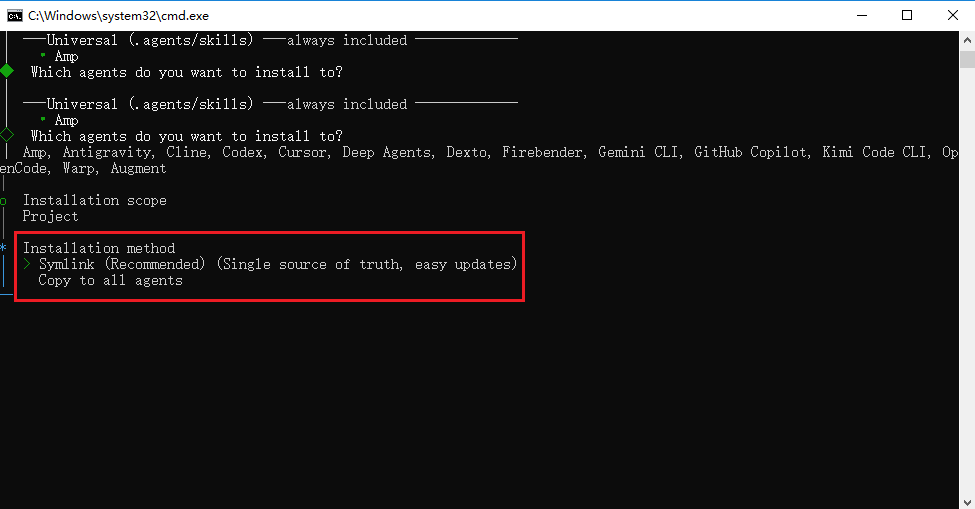
- Select the installation method. The first is a shortcut, and the second copies all content. Select the first one, then press "Enter".
- Do you wish to continue the installation? Select "Yes", then press "Enter".
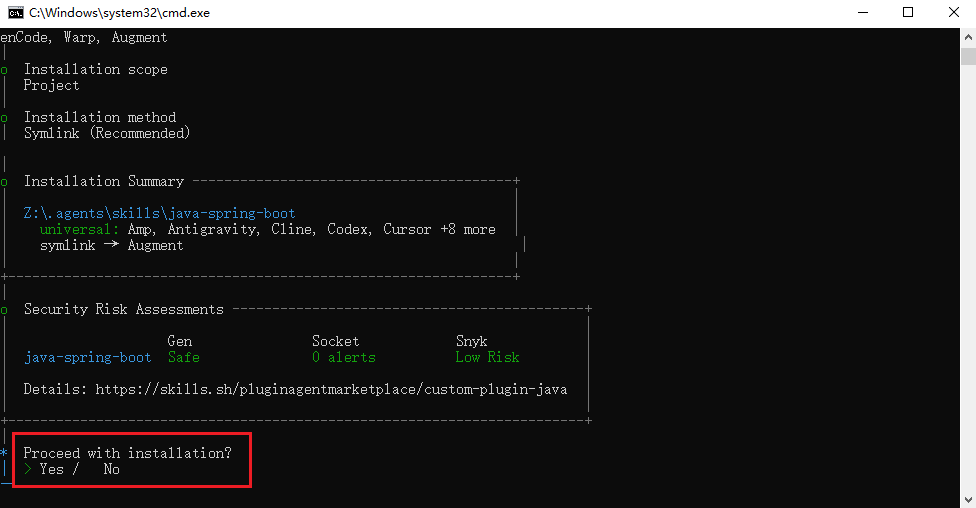
- After the download is complete, select the storage directory with the mouse, then press "Ctrl + Enter" to copy the path.
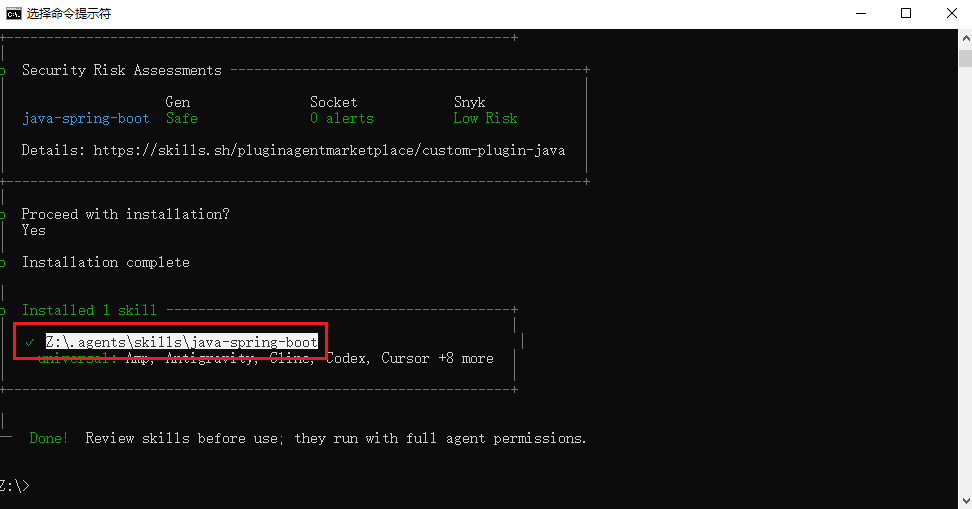
- On your local computer, open the disk, paste the path, and find the downloaded skill files.
Note: The disk directory may vary. If the disk directory is not displayed but starts with ~, open the C drive, go to the system username, and check if there is the selected directory.
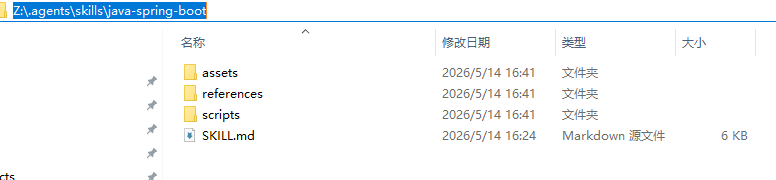
- Go back one level in the folder, and compress the directory into a ZIP package.

- Return to the Feisuan JavaAI plugin. In Skill Management, select the ZIP package to import. It will automatically parse the skill, then click "OK".
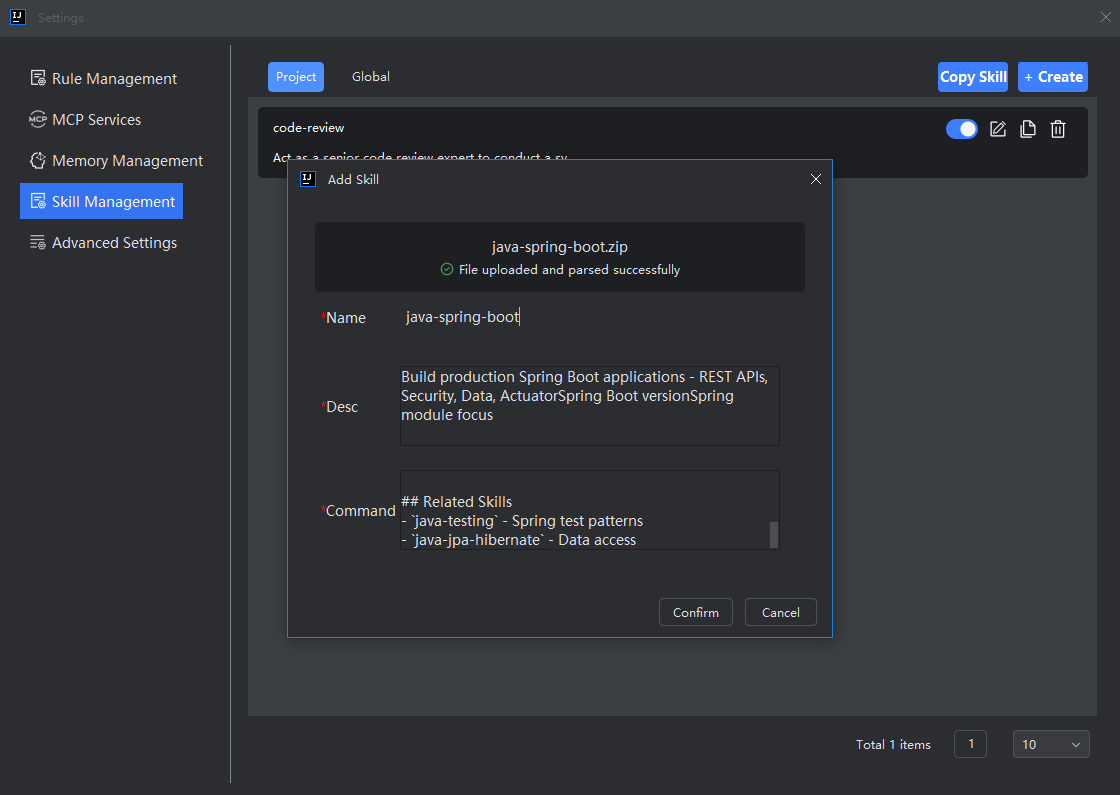
- View the imported skill.
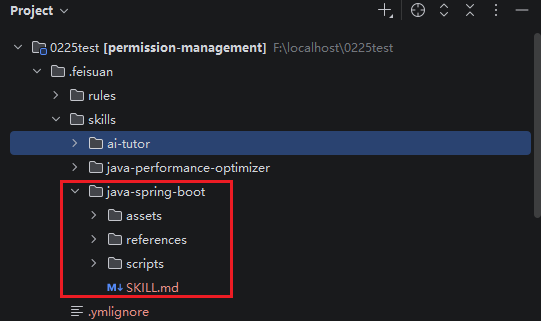
Download via GitHub
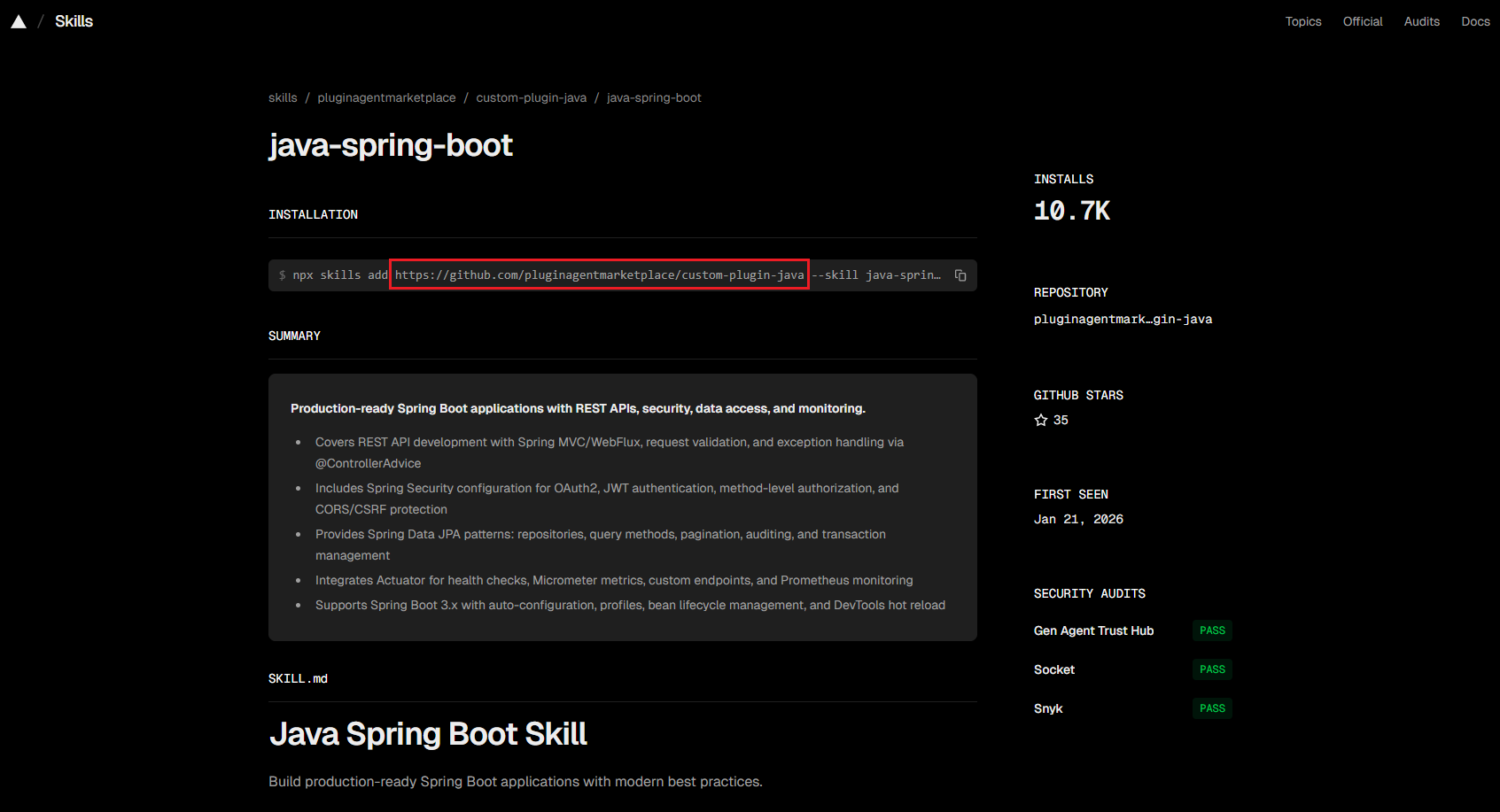
- Open the marketplace website, search for and select the corresponding skill, and click to enter the details.
- Copy the GitHub address from the command line, open a new browser tab, and open the GitHub address.
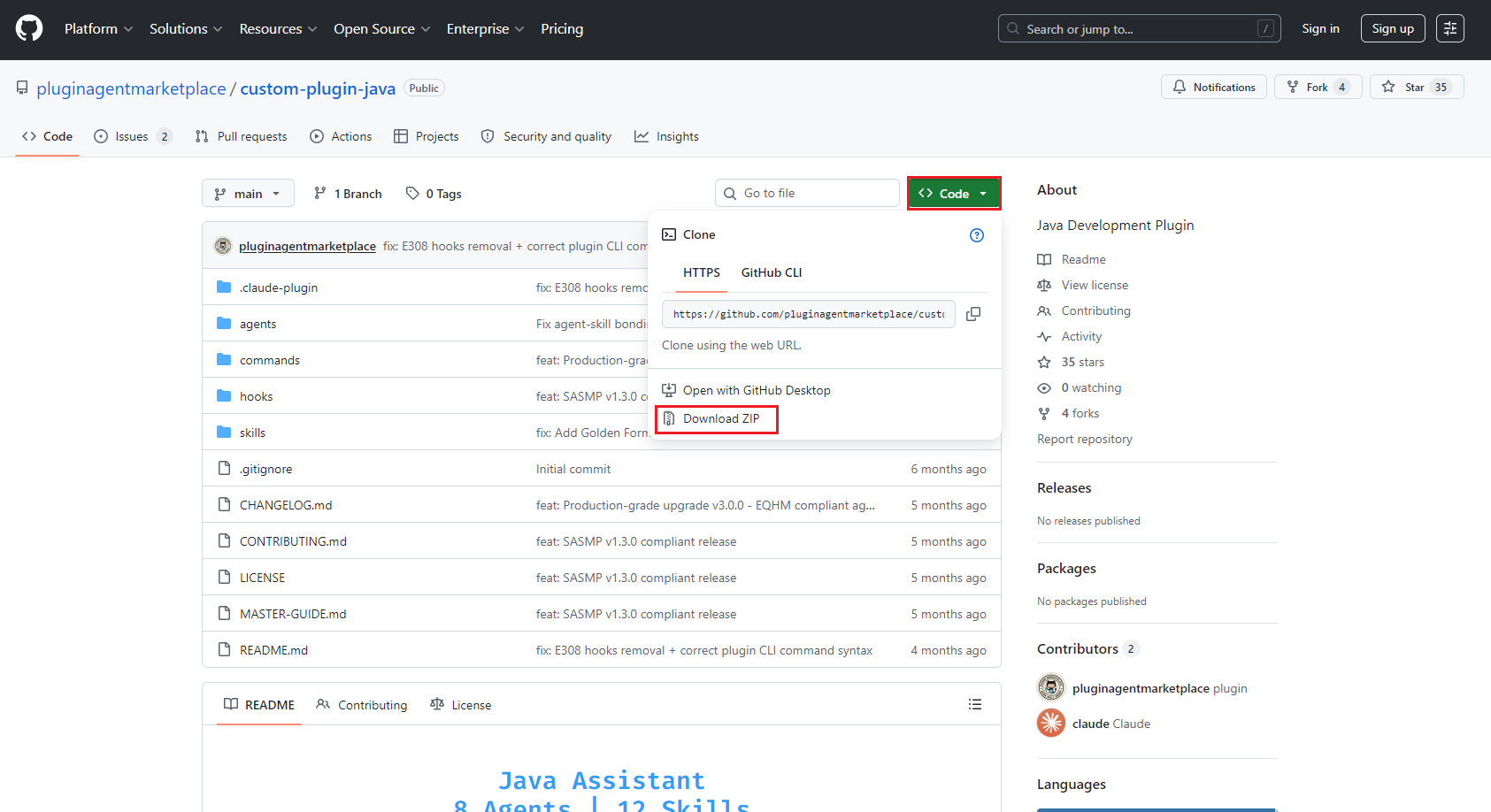
- Click the "Code" icon, and select "Download ZIP".
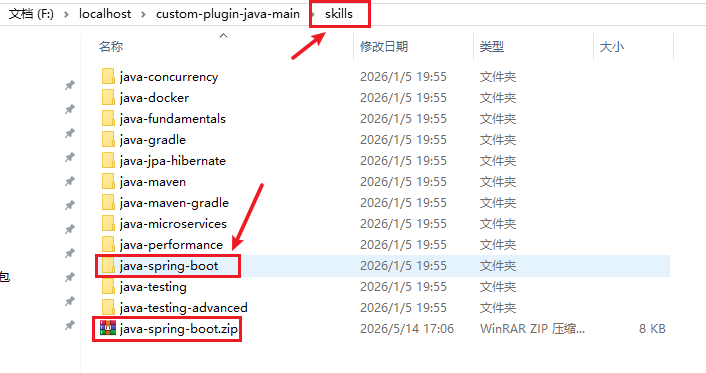
- Extract this folder. According to the folder name in the command line, find the corresponding file directory. Then compress the directory into a ZIP package.
- Return to the plugin. In Skill Management, upload the ZIP package. It will automatically recognize the skill inside, then click "OK".
- View the imported skill.