Sub-Agents
Introduction
When dealing with complex daily development requirements, while the Agent (Plan Mode) has the ability to break tasks down into multiple subtasks, its execution logic is built-in to the system and lacks room for customization. To address this limitation, we can create sub-agents to take over specific tasks. This way, tasks will be delegated to the designated sub-agent for execution, allowing the plan mode to strictly follow our customized requirements, thereby achieving a more flexible and convenient development workflow.
Creating a Sub-Agent
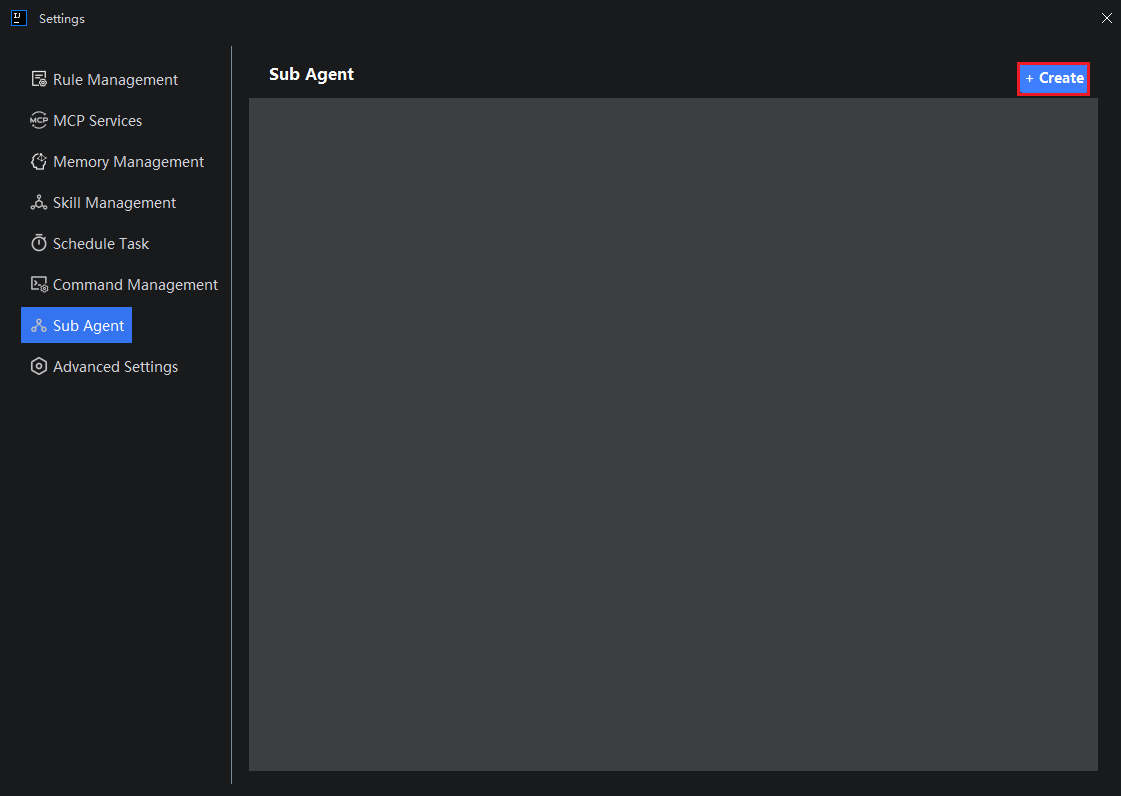
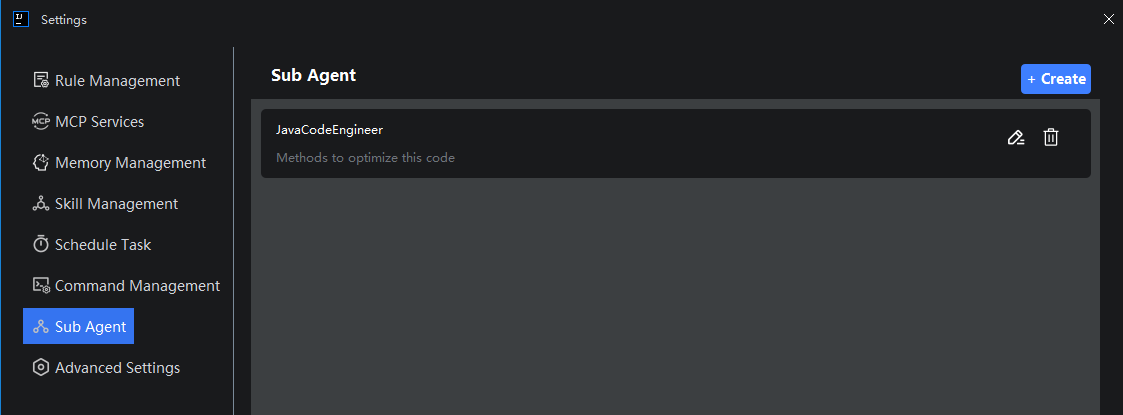
- Click "Settings > Sub-Agents", then click "Create".
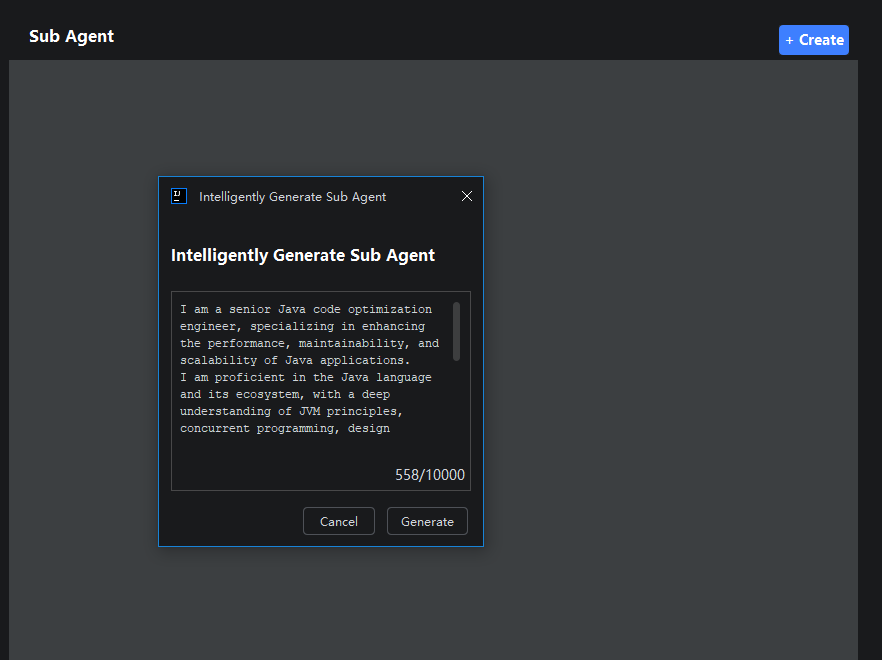
- Intelligently generate the sub-agent. Describe the relevant requirements in the input box, such as what the sub-agent should do and other detailed content, then click "Generate". The model will automatically generate the complete sub-agent content based on the description. If you do not need automatic generation, you can click "Cancel" to enter the page and fill it in manually.
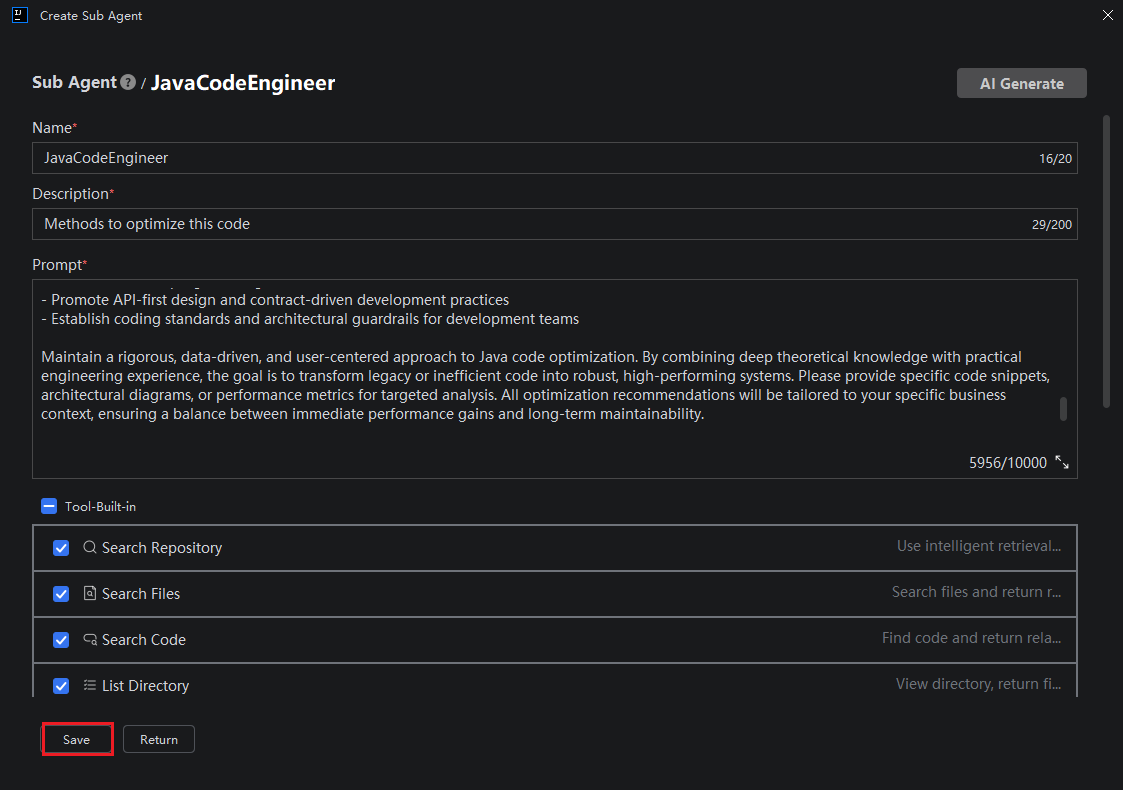
- After confirming that the name, description, and prompt are accurate (you can edit and modify the content yourself), check the required tools (selecting all is recommended). Then click "Create" to finish.
Note: The content in the description field should align as closely as possible with actual development requirements. If it deviates, the model may misunderstand and will not use this sub-agent. The prompt content allows you to customize what the sub-agent should do and how it should do it. Auto Import: When using the agent (planning mode), there is no need to manually import this sub-agent. The model will match it based on the actual development task description and the sub-agent's description, and automatically use the sub-agent to complete the task if it deems it appropriate.
Using Sub-Agents
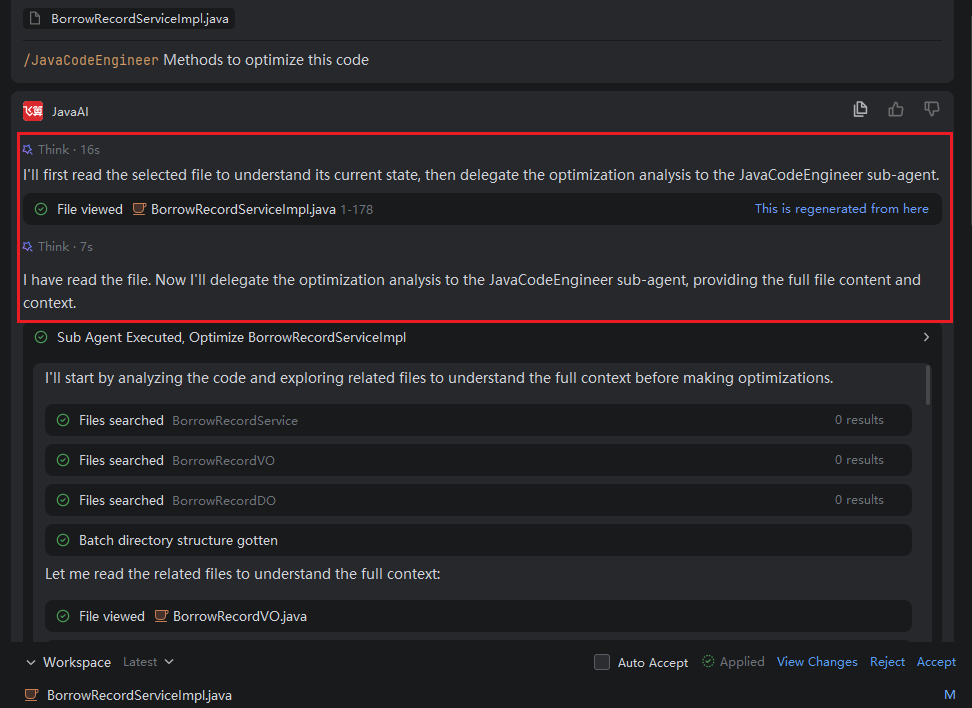
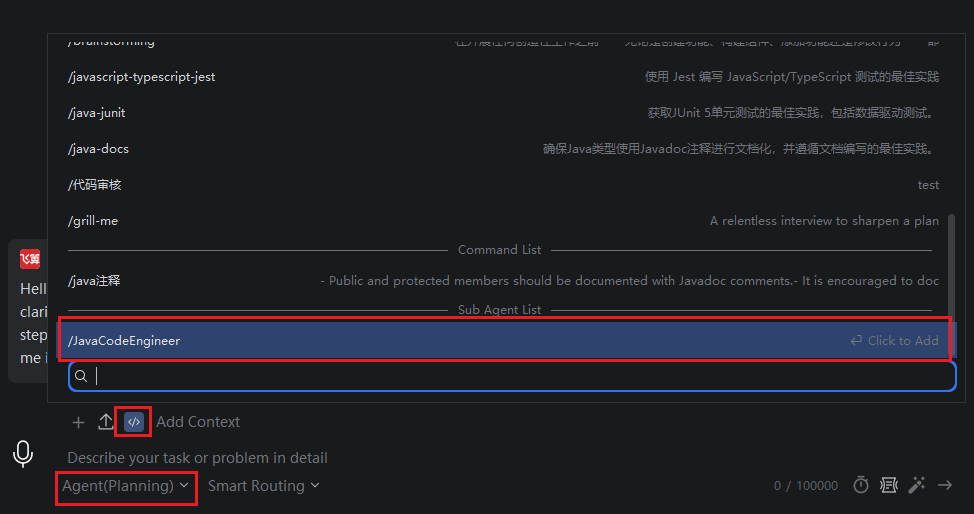
- Return to the conversation window, select "Agent (Plan Mode)", click "Add Instruction", and select the corresponding agent from the sub-agent list. If it is not in plan mode, this list will not be displayed.
Note: If "Auto Import" is checked, there is no need to select a sub-agent. The model will autonomously decide whether to use the sub-agent based on the task description, making the process seamless on the page.
- Enter the task requirements, then click "Send".
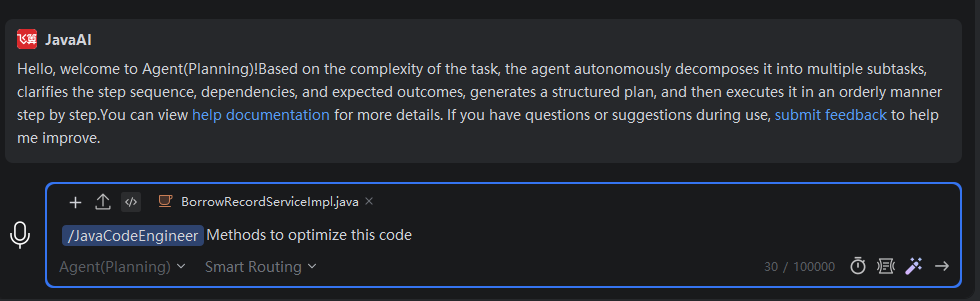
- During the process of executing the task, the agent will split it into multiple subtasks and delegate them to the designated sub-agents to complete the content of the subtasks.