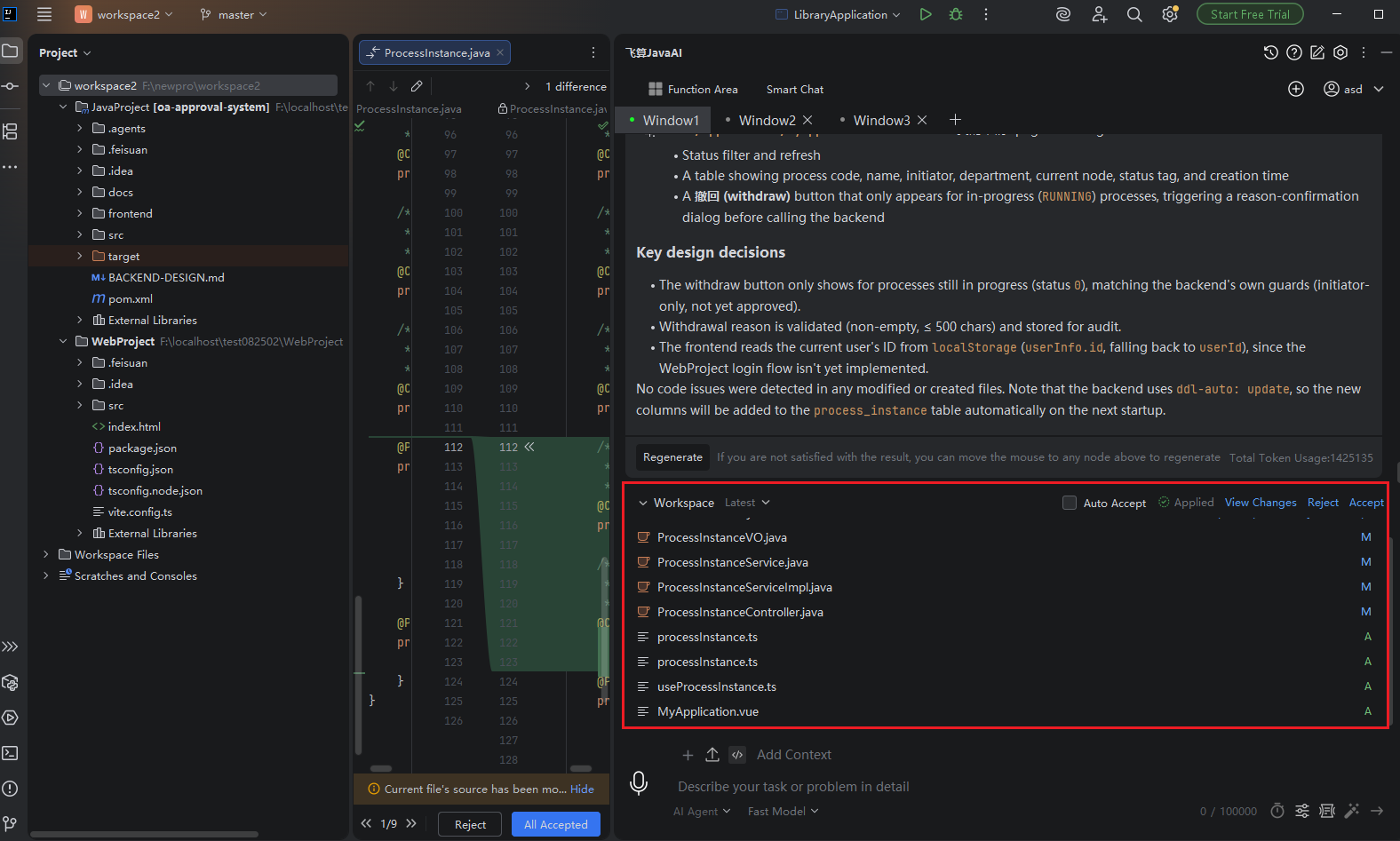
Multi-Project Support (Frontend & Backend)
Introduction
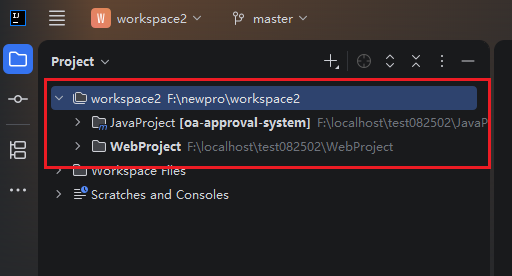
IntelliJ IDEA version 2025.2 and above supports the Workspace feature, which allows you to associate multiple projects in a workspace—such as two independent frontend and backend projects—and view and manage them within the same window. The plugin supports modifying multiple projects simultaneously. For example, when a new feature requires adjusting both the backend and the frontend at the same time, you can make all the changes within the current window, improving team collaboration and efficiency.
Prerequisites
- IntelliJ IDEA version 2025.2 or above.
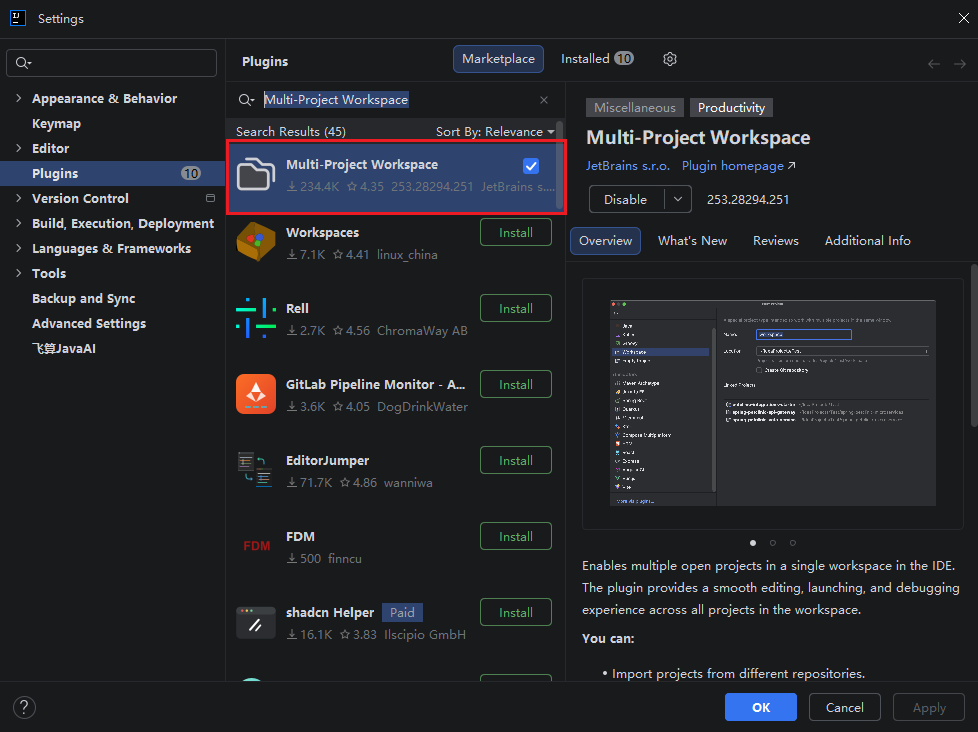
- This feature depends on the Multi-Project Workspace plugin. You need to install and enable the plugin from the plugin marketplace.
Install the Plugin
Check whether your current IntelliJ IDEA version is 2025.2 or above.
Open the plugin page, click "File > Settings > Plugins > Marketplace" in the top-left corner, find the "Multi-Project Workspace" plugin, and click "install". After a successful installation, restart IDEA if prompted.
Create a Workspace and Associate Projects
Note: For more information about how to create and use a Workspace, refer to the official IntelliJ documentation: https://www.jetbrains.com.cn/help/idea/workspaces.html
- Click "File > New > Project" in the top-left corner, select "Workspace", and enter the relevant information.
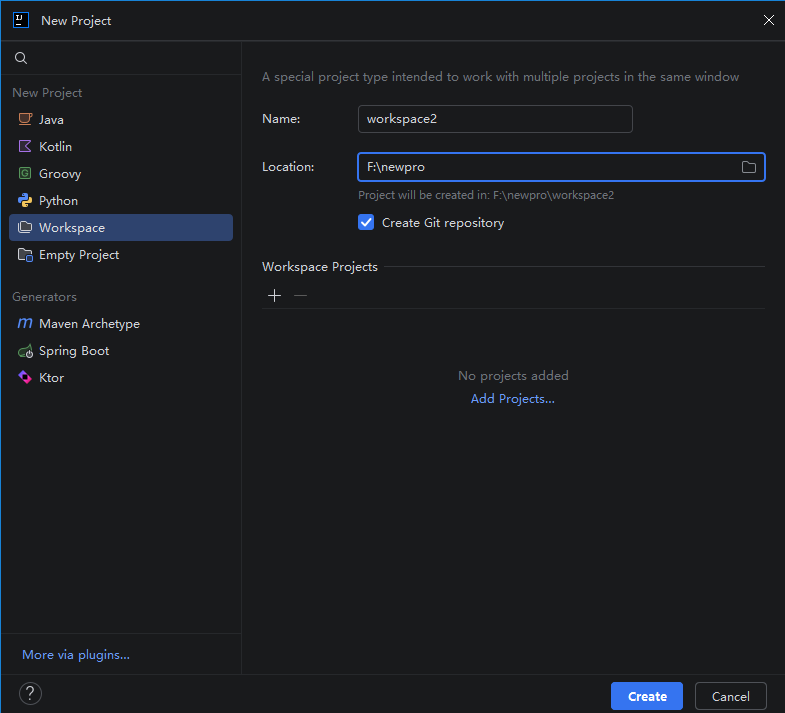
- Then, under "Workspace Projects" at the bottom, click "+" or "add Projects", select all the projects you want to associate, and click "Create".
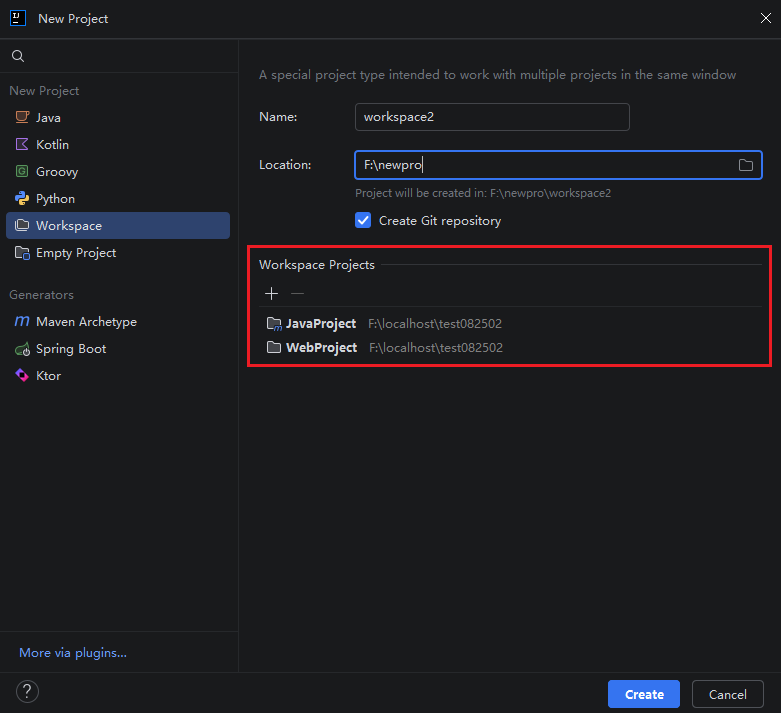
- In the newly opened window, you can see that the Workspace contains two independent projects.
Use the Plugin for Adjustments
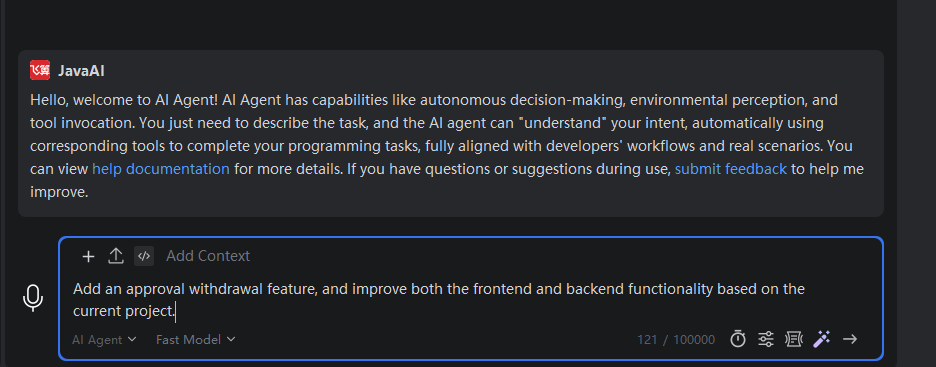
- Open the plugin, use the intelligent session, and enter your question or requirement in the input box.
- View the projects where the model synchronously modifies both the frontend and backend.