
Common Issues Related to Features
Introduction
Here are some common issues. You can check the list to see if you encounter similar situations and try to resolve them according to the corresponding solutions. If the problem still cannot be solved, please use the "Submit Feedback" button on the page to report your problem to us, and we will provide you with assistance as soon as possible.
Summary of Common Issues
1. What languages does FeiSuan JavaAI support?
Answer:
- Smart Guide:
- Java Web Project (Old Version): Only supports generating Java project code
- Java Web Project (New Version): Supports generating Java project code and front-end project code
- General Scenarios: Supports generating mainstream programming language code, including but not limited to: Java, Python, C/C++, JavaScript/TypeScript, Go, PHP, Ruby, Swift, Kotlin, Rust, Scala, Dart, HTML, CSS, XML, Vue, SQL, etc.
- Smart Conversation: Supports generating mainstream programming language code, including but not limited to: Java, Python, C/C++, JavaScript/TypeScript, Go, PHP, Ruby, Swift, Kotlin, Rust, Scala, Dart, HTML, CSS, XML, Vue, SQL, etc.
2. How to set up automatic updates to the latest version when there is a new version?
Answer: You can set the update version mechanism through advanced settings. The default is to automatically update to the new version.
3. Does it support front-end development
Answer:
- Smart Guide: Java Web Project (New Version) and General Scenarios as well as Smart Conversation support front-end development
4. Regarding the ownership of user code
Answer: The copyright of your own code and other original content uploaded or input through the platform always belongs to you (or your authorized party). The platform only provides technical services (such as code optimization suggestions, generation completion, etc.) according to your instructions, and will not claim any copyright or ownership of your content during the process.
5. About data security and privacy protection
Answer: The platform always strictly abides by privacy terms. Your code and data are only used to achieve service functions. Without your explicit authorization, we will not retain, use, or disclose your private content in any form. If you have other questions, please feel free to contact us at any time. We value the trust of every developer and will continue to optimize the service experience to protect your rights and interests.
6. Error after version update/unable to enable issue
6.1) Try restarting IDEA;
6.2) Check automatic update configuration: Configure automatic update
6.3) If the issue is still unresolved, please uninstall the previous plugin and reinstall the new version plugin: Offline installation of plugin
7. Uninstalling the plugin is not clean?
Answer: Open C:\Users{username}\AppData\Roaming\JetBrains\Idea version\plugins, find and delete the calex related directory.
8. What to do if the plugin is too slow?
Answer: You can turn off intelligent analysis or reduce the speed of intelligent analysis. See the gear setting section of Intelligent Analysis.
9. All functions show system exceptions when used
Answer: This indicates that the request did not reach the backend, which is basically due to network issues, such as network limitation policies, etc.
10. How to view IDEA's log information?
Answer: Find help in the top status bar of IDEA, and the complete path is as follows: help > Show Log in Explorer > idea.log. Open idea.log to see the relevant log information.
11. How to view javaAI's log information?
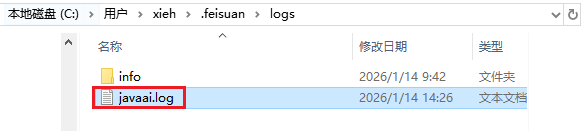
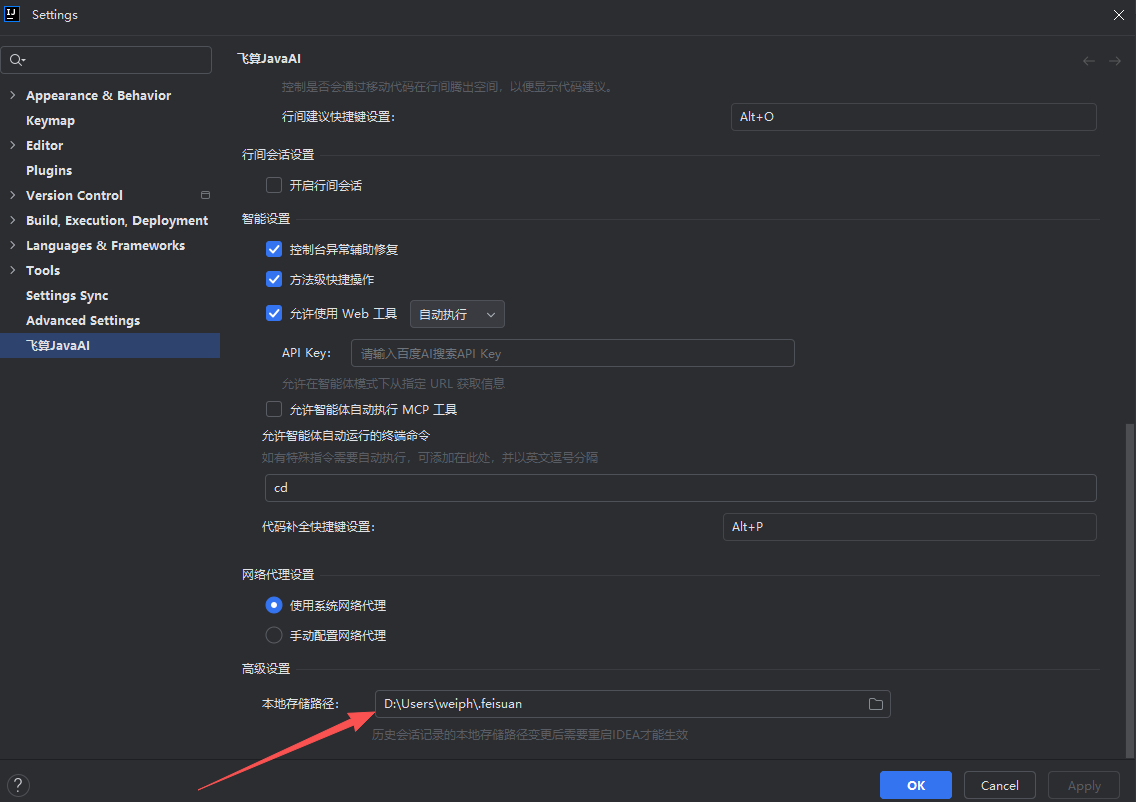
Answer: Open Advanced Settings, view the local storage path in advanced settings, find the .feisuan directory under this path, open the logs file, and the log information is stored in the javaai.log file. View local logs
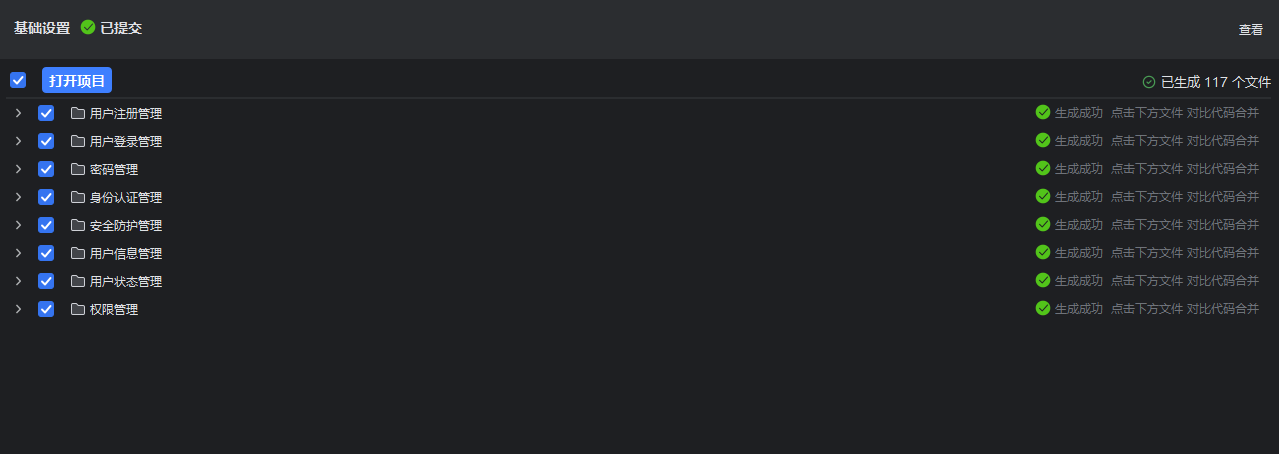
12. Solutions for the failure of the last step of smart guide to generate source code (as shown in the figure below).
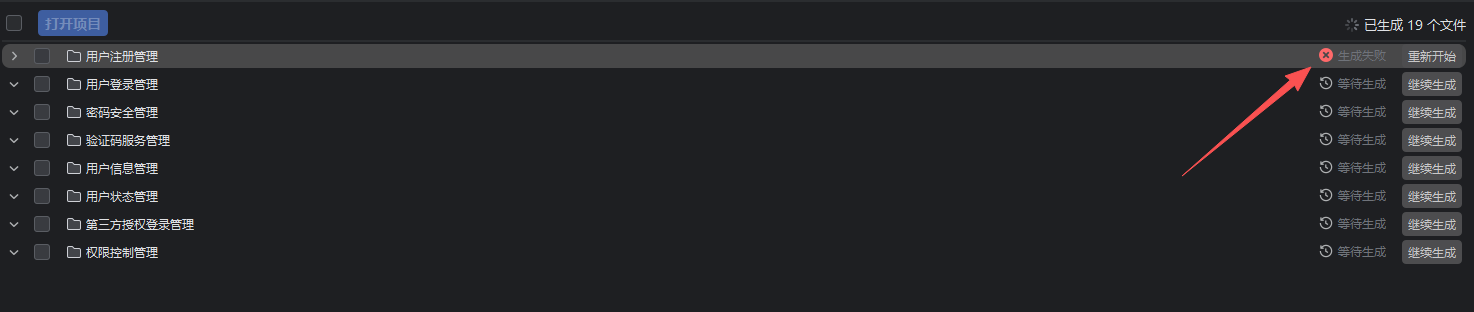
Reason one: Consider it is due to process occupation. You can try restarting IDEA. If generation still fails after restarting, you may need to try restarting the computer.
Reason two: If the above methods still do not solve the problem, go to FeiSuan JavaAI Advanced Settings ➡ Local Storage Path ➡ Delete the db file under this path, the path: /.feisuan/nlp/db, and then regenerate the source code.
13. After installing Feisuan JavaAI, the plugin cannot log in when opened?
Answer: Please troubleshoot and retry using the following methods:
- First, check if your computer has external network access. If not, you need to access through proxy settings. Open Advanced Settings, Configure Network Proxy, click for details.
- After setting up the network proxy on your computer, in Advanced Settings, under Network Proxy, select "Use System Network Proxy", then try logging in. If web login fails, choose to log in at the top of the IDE.
- If you still cannot log in after selecting "Use System Network Proxy", please select "Manually Configure Network Proxy", fill in the network proxy address, then log in via the IDE. IDE Login, click for details.
14. Prompted that tokens are insufficient or attempts are exhausted during use?
Answer: After being prompted that tokens are insufficient or attempts are exhausted, you need to open the official website https://feisuanyz.com, enter the console, open the resource package management, purchase a new resource package to continue using. Click "My Resource Package" to view the detailed content of the resource package.

15. After purchasing tokens, where can I view the specific usage details?
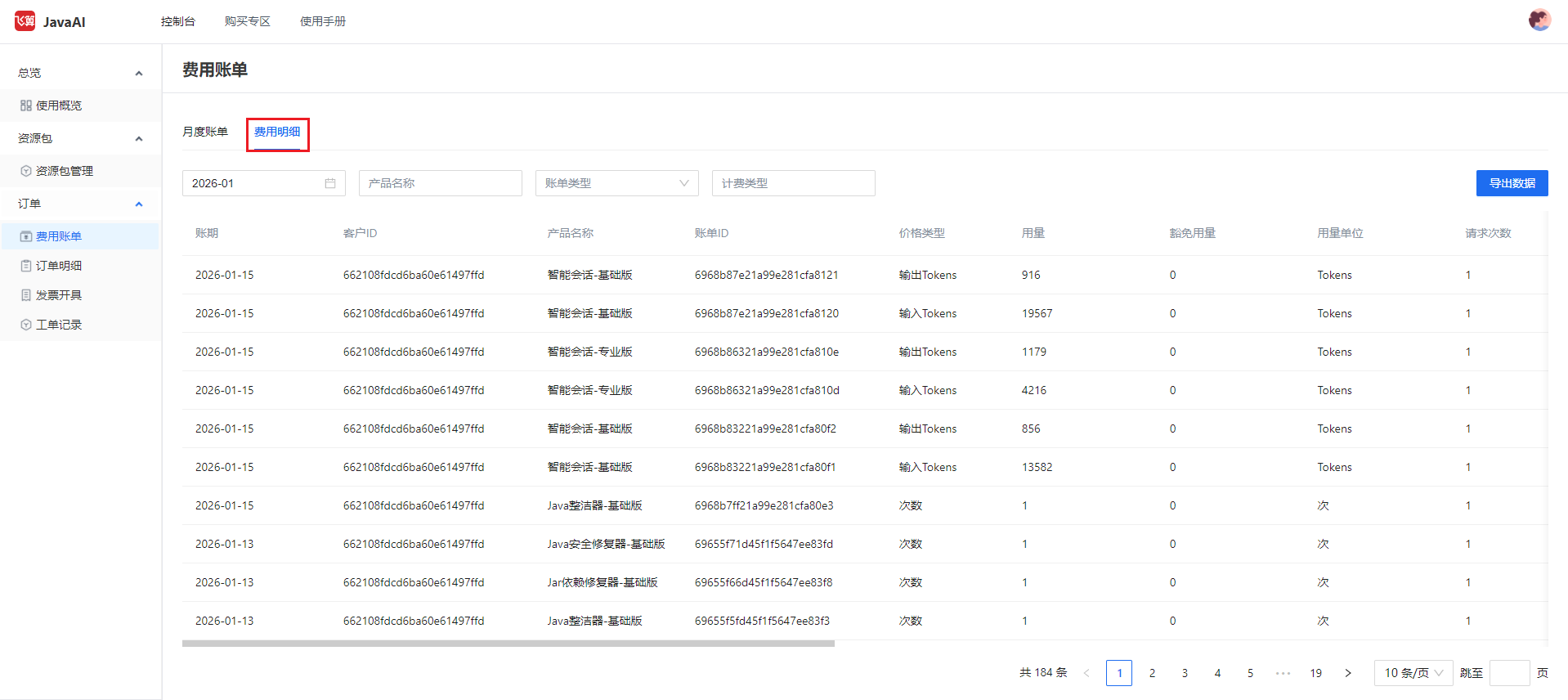
Answer: Open the official website https://feisuanyz.com, enter the console, select "Order > Cost Bill > Cost Details", and you can view the specific consumption details of the resource package.
16. The plugin icon does not appear on the right side after installation?
Answer: Please make sure to restart IDEA after installing the plugin. The Feisuan logo icon should then appear on the right side; simply click it to open. If it still does not show up, please follow these steps: hover your mouse over the top toolbar of IDEA, select "View > Tool Windows", and then click "Feisuan JavaAI". It will then be displayed on the right side.
17. The Smart Analysis icon does not appear after opening the plugin?
Answer: Please check whether the IDEA Status Bar is enabled: in the top menu bar of IDEA, go to View, select "Appearance", and then select "Status Bar". Check the box to show the status bar, or uncheck it to hide it.
18. How to hide the Smart Analysis status bar?
Answer: To hide the Smart Analysis status bar, right-click on the status bar and uncheck "Smart Analysis". To show it again, right-click on the status bar and check "Smart Analysis".
19. How to check the currently installed version of the plugin?
Answer: Open IDEA "Settings", select "Plugins", choose "Installed" on the right side, locate "CalEx-JavaAI", and the currently installed version number will be displayed below it.
20. What kind of projects can the One-Click Fixer in the toolbox fix?
Answer: Currently, it only supports fixing Java projects. Projects in other languages cannot be fixed at this time.
21. What is the difference between Smart Answer and Agent? How should I choose?
Answer: Smart Answer provides reference solutions based on your task requirements, but it cannot take actual actions to solve the problem for you. The Agent, on the other hand, combines your task requirements with your current development project to generate the corresponding code or complete the task through actual execution. If you only need reference answers, using "Smart Answer" is more convenient. If you need actual task completion, the "Agent" will be of real practical help.
22. Can files generated, modified, or deleted in the workspace of a Smart Session be restored after acceptance?
Answer: Yes. In the workspace of a Smart Session, whether you have clicked "Accept" or "Reject" for generated files, you can restore them to their original state using the "Rollback" button on the workspace. Any changed code will also be reverted to its initial state.
23. What should I do if the source code generation process in Smart Guidance takes too long or gets stuck waiting?
Answer: Cancel and retry. On the final source code generation page of Smart Guidance, there is a "Cancel" button at the bottom. Click it and wait a moment for the cancellation to complete. Afterward, please select "Regenerate" or "Continue Generating" to try again.
24. The Smart Analysis button cannot be activated?
Answer: First, enable Smart Analysis by going to "Settings > Advanced Settings > Smart Analysis" and checking "Enable Smart Analysis". Then, click the Smart Analysis button to start the analysis. This analysis is project-level; for other open projects where Smart Analysis is not needed, you can simply click the button to turn it off without any adverse effects.
25. How to turn off the notification pop-ups in the bottom right corner?
Answer: Go to "Settings > Advanced Settings > Smart Settings Module" and uncheck "Enable Smart Notifications".
26. How to adjust the font size of the model's responses?
Answer: You can set the font size for replies in the Advanced Settings.
27. Does a single question usually trigger multiple automatic calls to the underlying model?
Answer: Yes, a single question from the user usually triggers multiple automatic calls to the underlying model, and each call counts toward your quota consumption.
- Simple Q&A: A single question typically triggers 5-20 model calls.
- Complex tasks: A single question typically triggers 20-50 or more model calls.
Note: The actual usage may vary depending on factors such as project complexity, codebase size, and whether "Deep Thinking" is enabled.