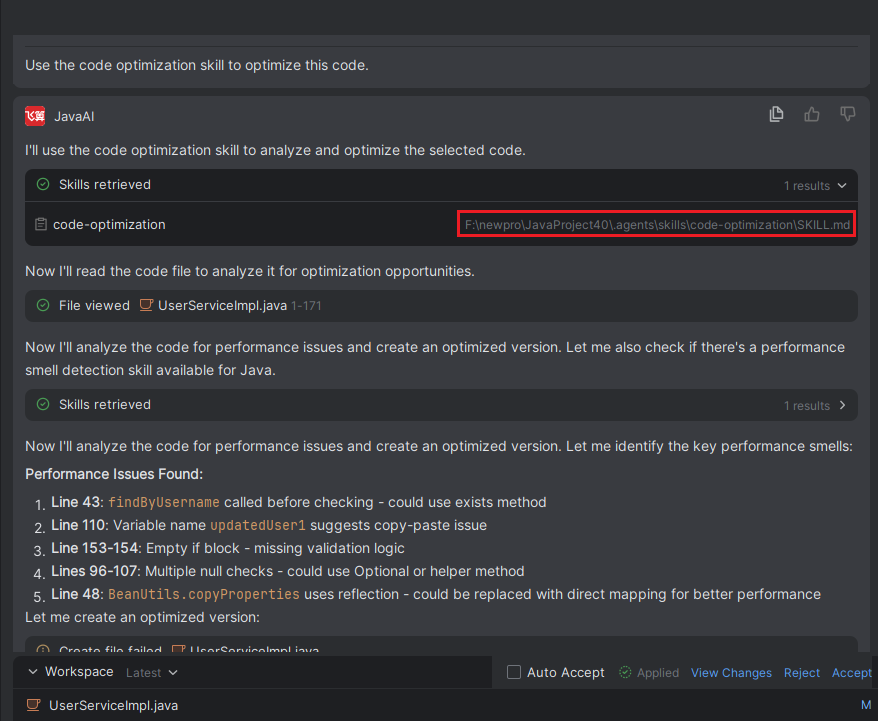
Install Skill Package
Introduction
Let the agent directly help you install skill packages from the skill marketplace without manual download. You only need to describe which skill to install.
Install Skill
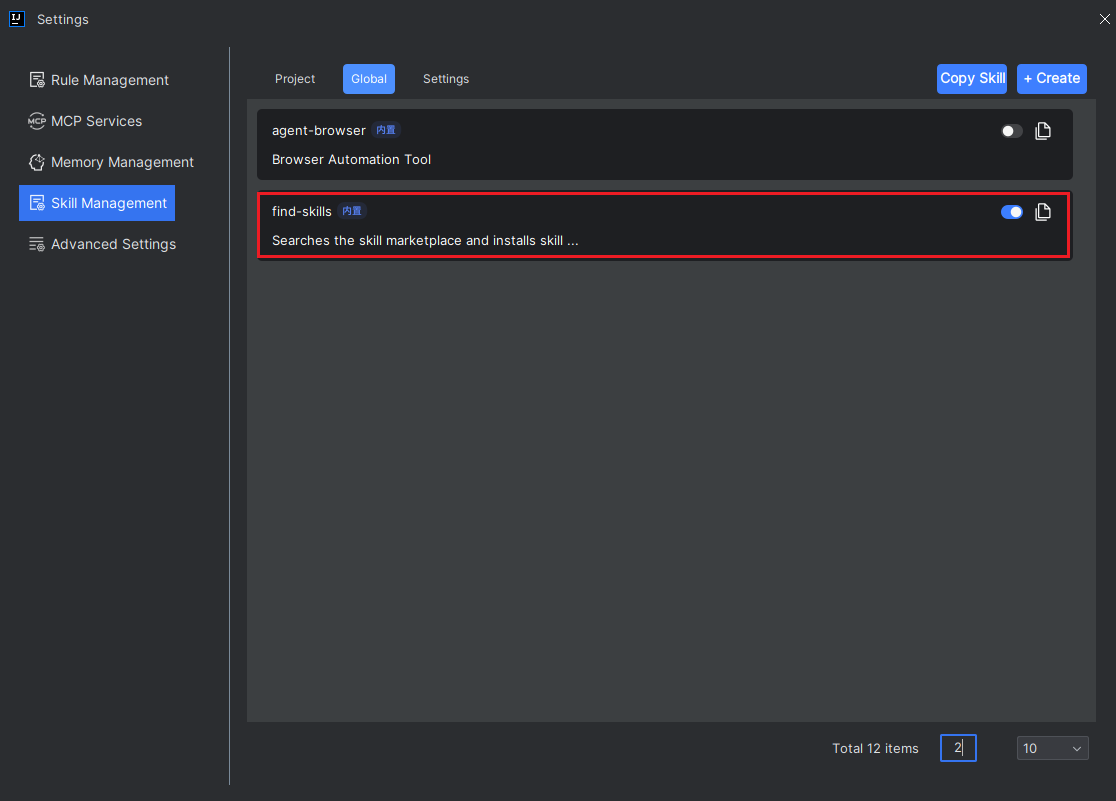
- In Advanced Settings, select "Skill Management", then choose "Global" skills. Find the built-in skill "find-skills" and click the button to enable it. Without enabling, related skill packages cannot be retrieved.
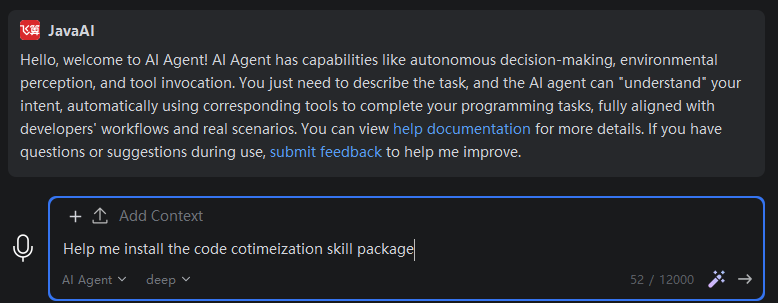
- In the input box, enter a description specifying which skill to install.
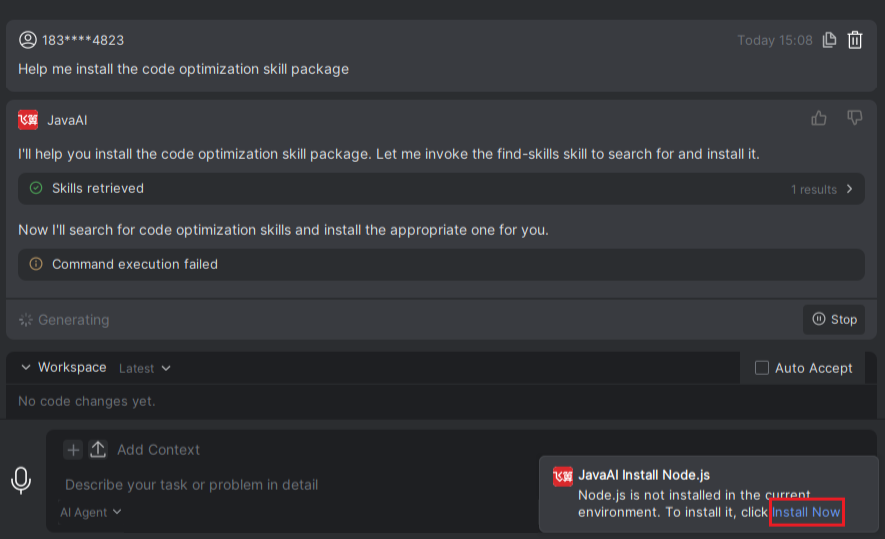
- The agent will first check if the Node.js environment exists. If not, a prompt will appear in the lower right corner indicating the environment is missing and requiring installation. Click "Install Now". If the environment exists, the corresponding command will be executed.
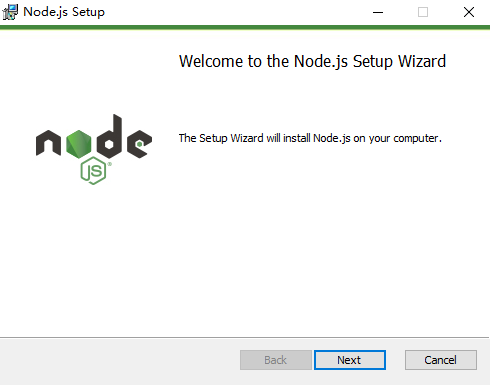
- Proceed to install Node.js. Follow the prompts and keep clicking "Next" until the installation is complete.
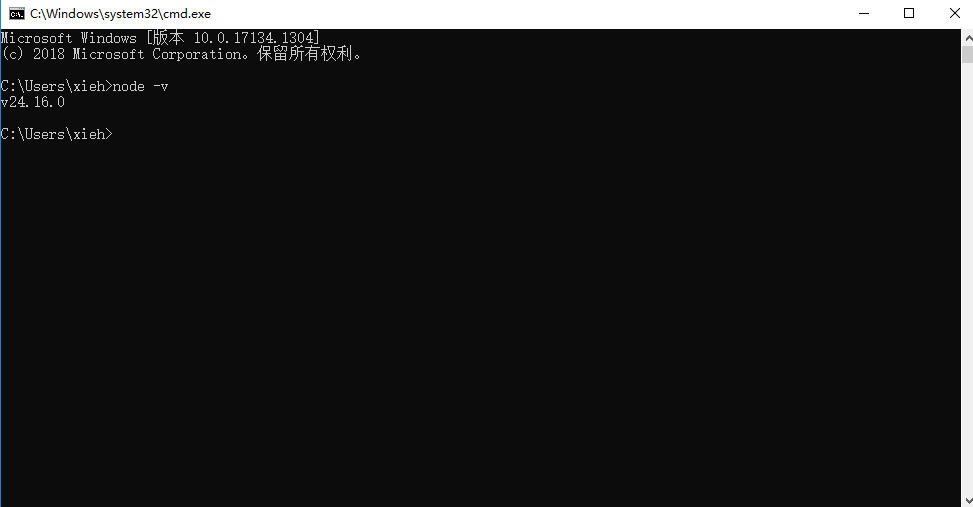
- Open the computer's CMD command line and input "node -v" to check if the installation is complete. The appearance of a version number indicates a successful installation.
- Re-enter the description to install the skill.
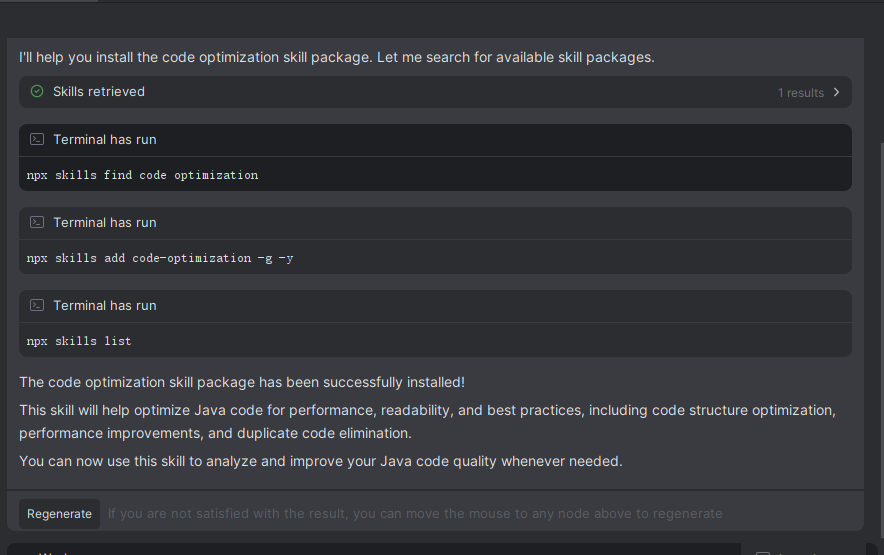
- The model will then use the retrieval skill to search for related skill packages.
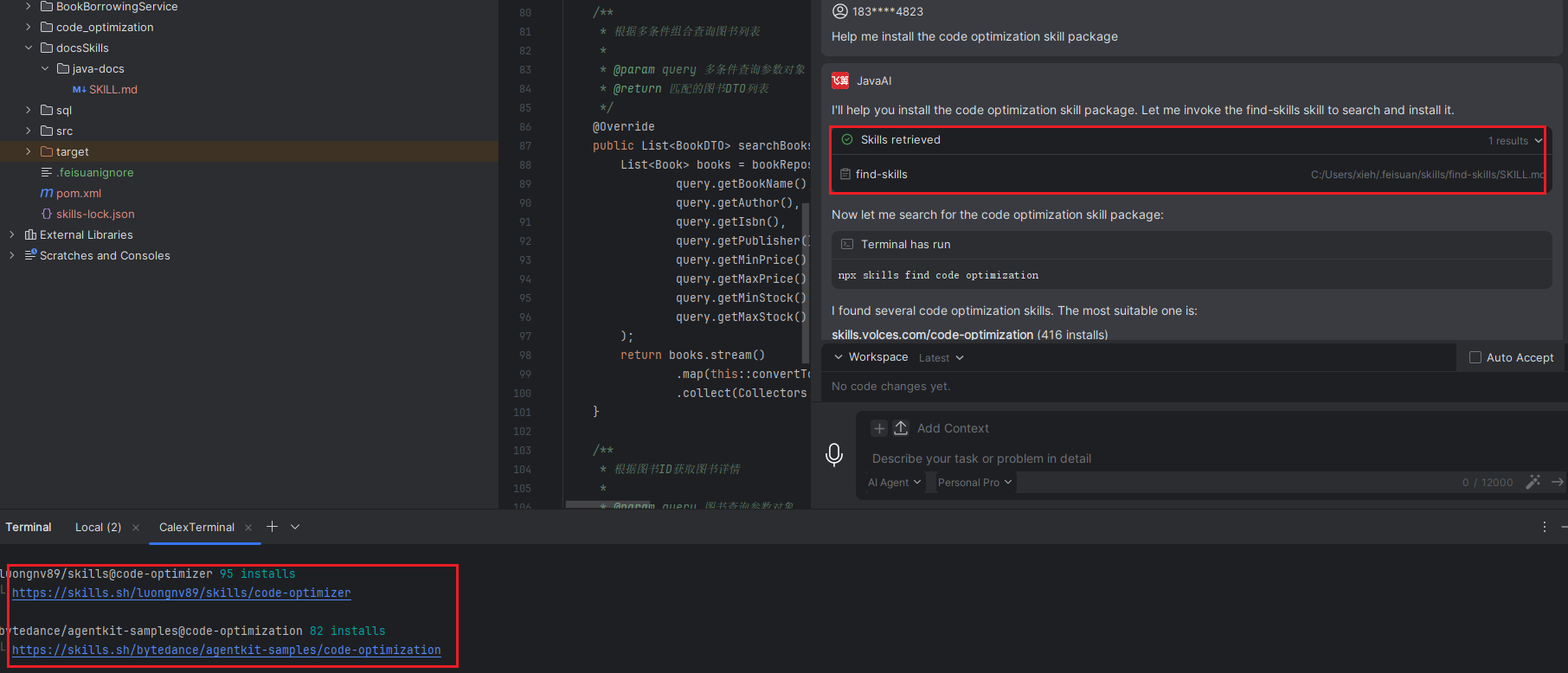
- Search complete. Please confirm if you want to install, then simply approve the command.
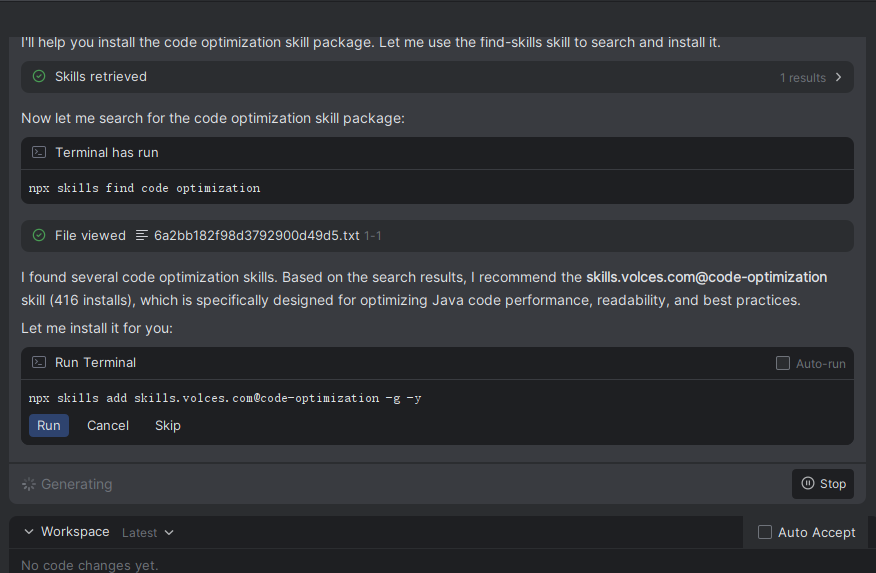
- After selection, the system will automatically download and install the corresponding skill package until the installation is successful. The page will display the storage path after successful installation.
Please note the following:
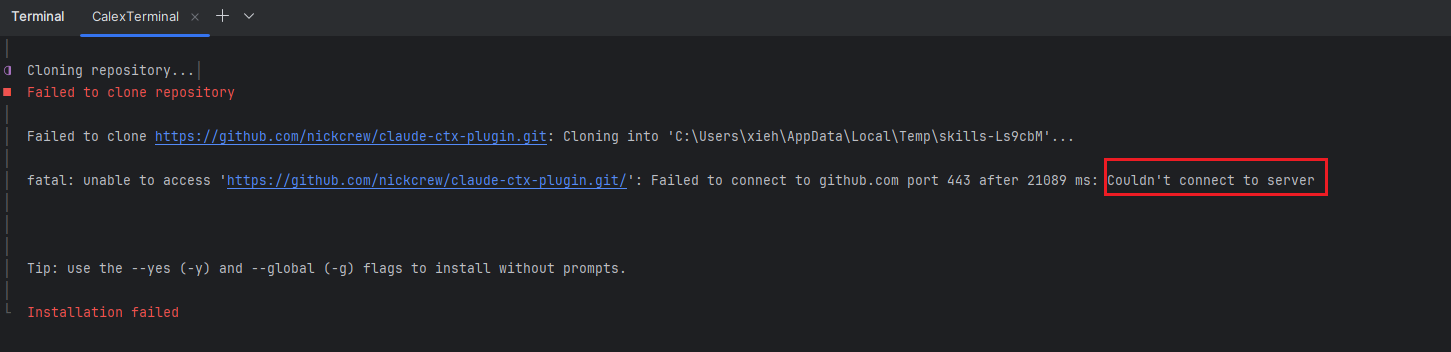
- The skill installation process requires accessing (https://github.com/) to download the package. If you are in a corporate intranet environment, the download will fail. Please configure the plugin to use a proxy.
- If you have external network access but the installation fails, check the page description. It might be due to service instability or connection issues. Please retry by restarting the task.
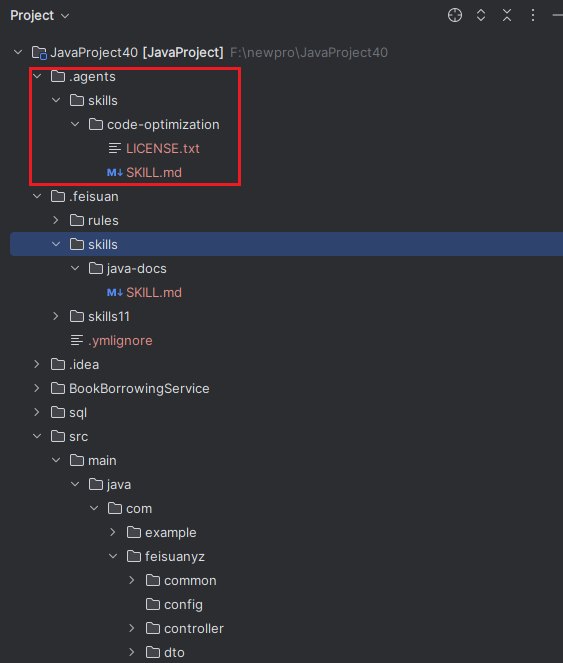
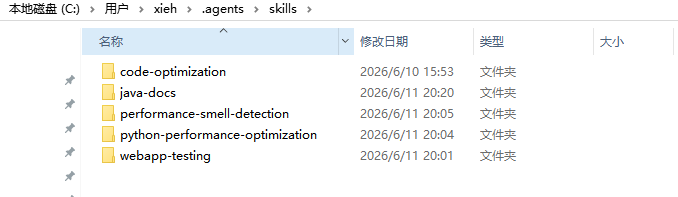
- Skill packages are installed in the "C:\Users\Username.agents" directory. If a skill cannot be installed globally, it will be installed in the project's ".agents" directory. Please check the model's final response after successful installation.
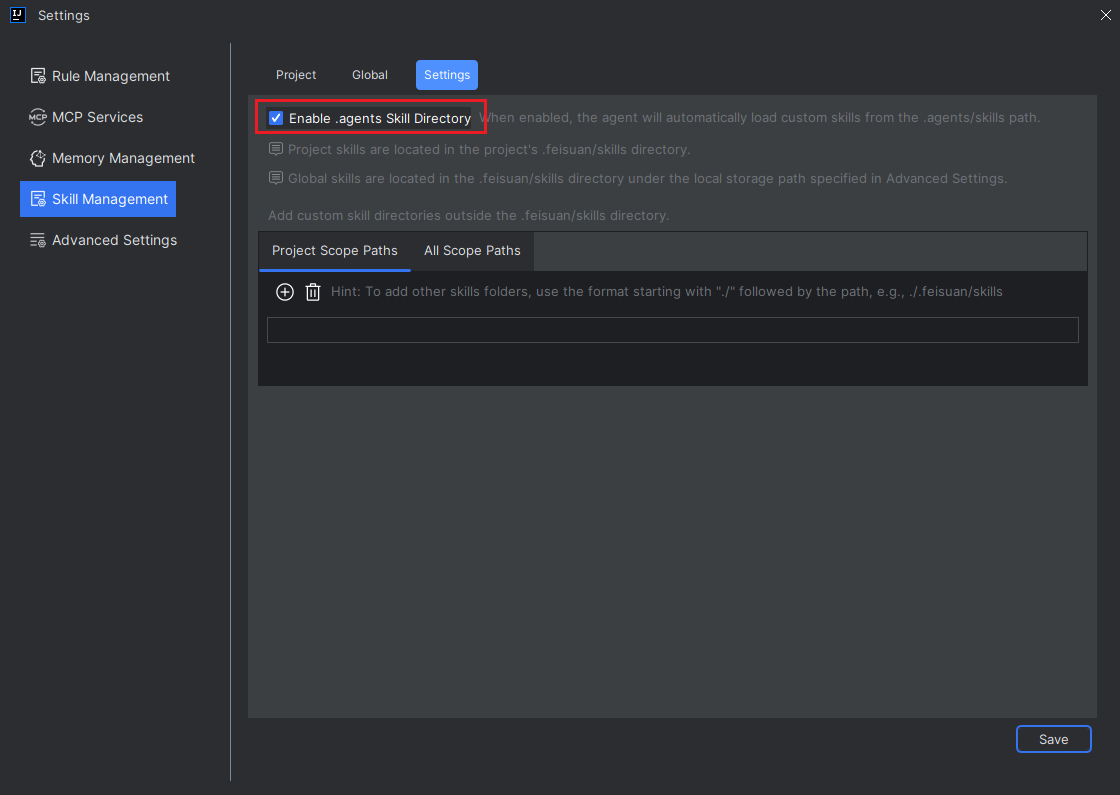
- After successful installation, to use the installed skill package, you need to go to "Skill Management > Settings" and check "Enable .agents skill directory" to make the system detect it.
- The error for failing to connect to the Gitbun server is shown in the image below:
- TTo view installed skills, if they are installed in the project, please check the .agents directory within the project.
- If installed globally, check the "C:\Users\Username.agents" directory.
- In Advanced Settings, select "Skill Management", then "Settings", and check "Enable .agents Skill Directory". After enabling, the agent will automatically load custom skills from the .agents/skills directory.
- In the agent, input a task requirement specifying which skill to use for the task.

- The agent will retrieve skills from the .agents directory and complete the task according to the skill's requirements.