Skill Usage
Creating a Skill
Create in Skill Management
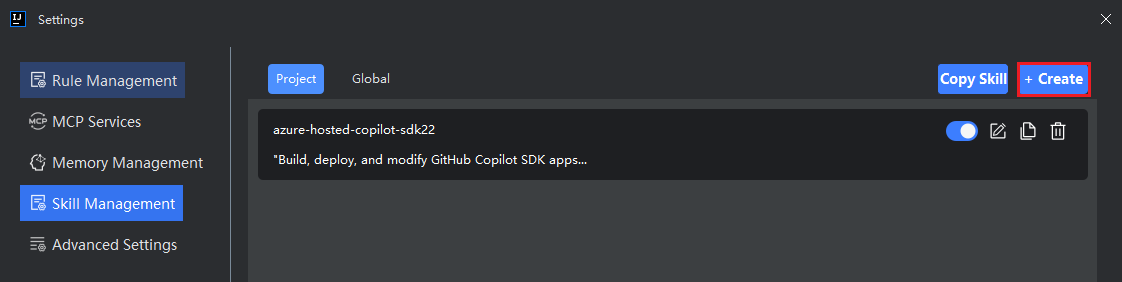
- Click Settings in the upper right corner, select Skill Management, and click Create.
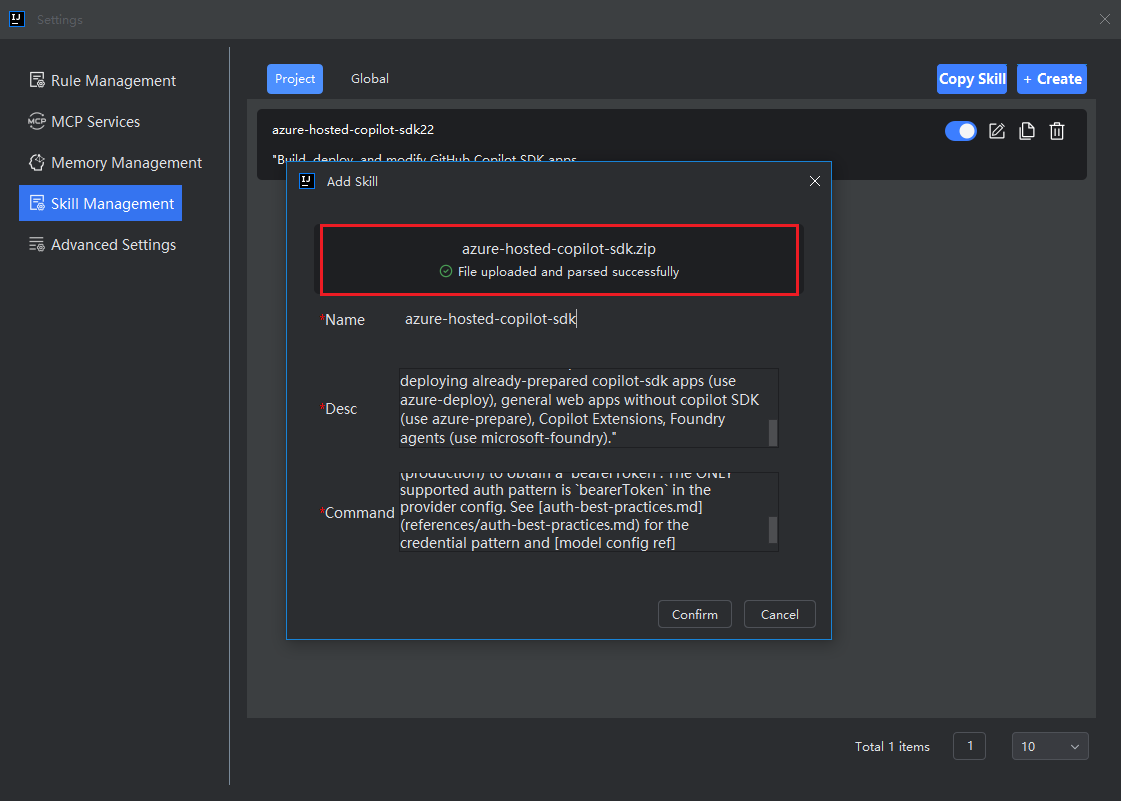
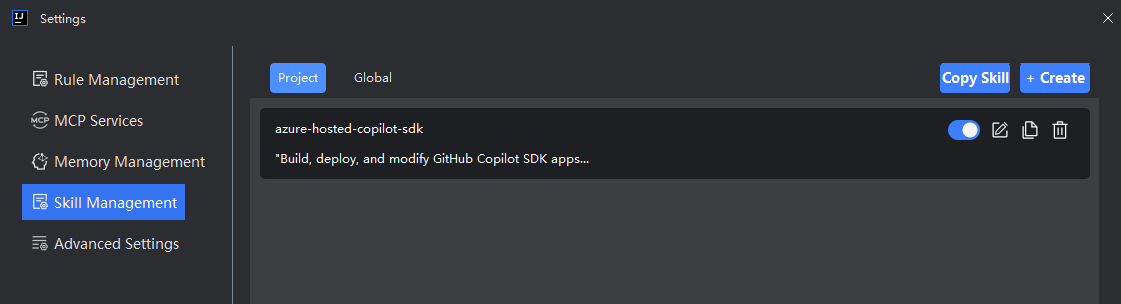
- Select the skill scope, "Project" or "Global", then fill in the Skill Name, Description, and Instructions, and click OK.
Note: Directly uploading external skill files is supported. Please ensure the uploaded file is in .skill or .md format, or a ZIP archive containing these file types. The file content format must be consistent with the format in the "Skill Overview" chapter; otherwise, the upload or parsing will fail. Please refer to the Skill Overview chapter for specific formatting details.
Skill Name: Give the skill a short and recognizable name. This is used to identify the skill.
Description: Used to describe the skill's capabilities and applicable scenarios. It should follow these conventions: use the third person, describe from the model's perspective, and include keywords for core functions and trigger timing.
Instructions: The rules or information you want the model to follow when this skill is triggered. The core of a skill is "steps"—these must be imperative, specific actions rather than general descriptions, ensuring the model can execute them step-by-step. Additionally, each skill should handle only one task, corresponding to a single core action verb.
Create via Instructional Q&A
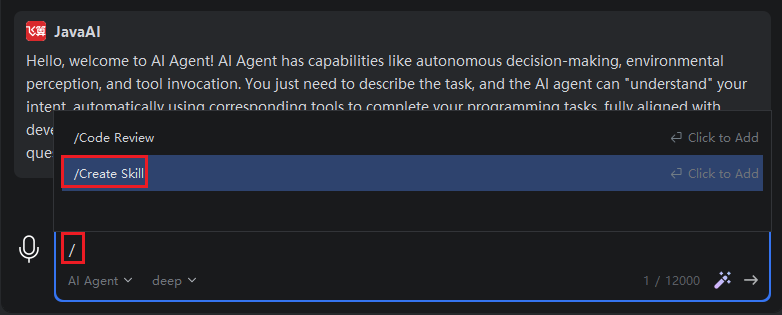
- Type "/" in the input box, then select "/Create Skill". In the description, type "Help me create a skill", or directly describe the skill you want to create.

- Then, answer the questions one by one by selecting the option that best fits your needs. If none of the provided answers match, enter your own custom content in the last option and select it. Continue until the process is complete.
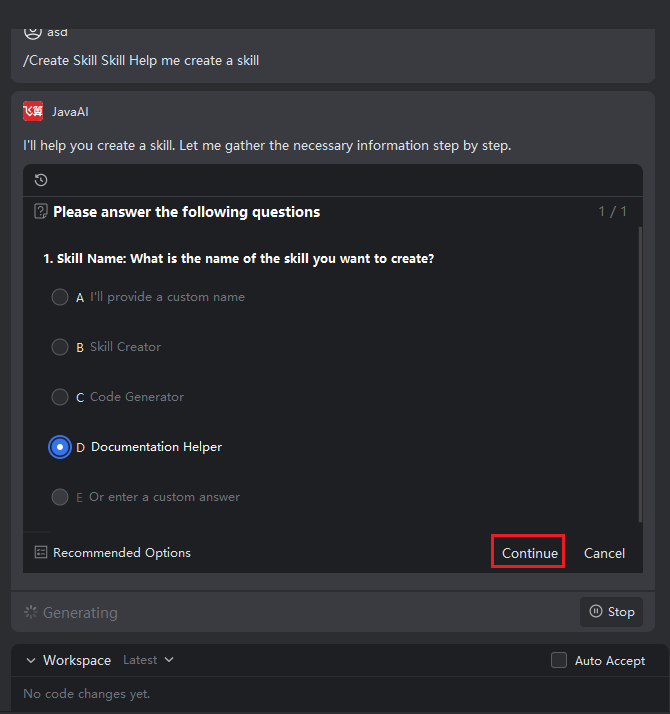
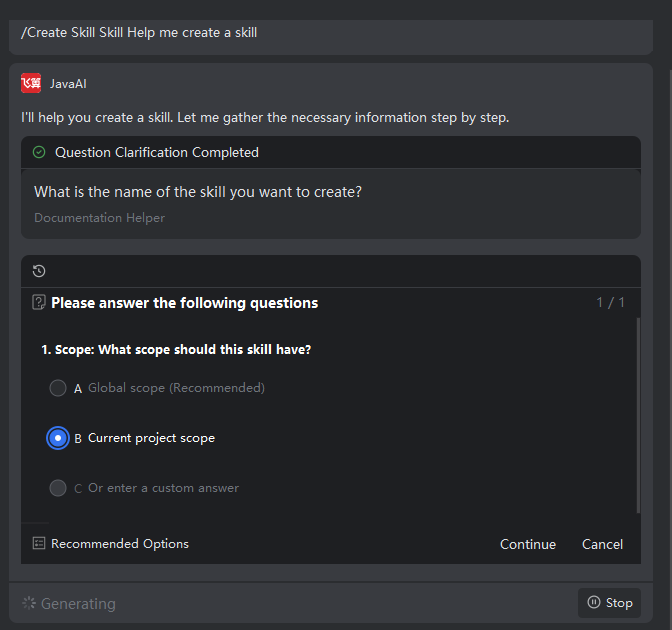
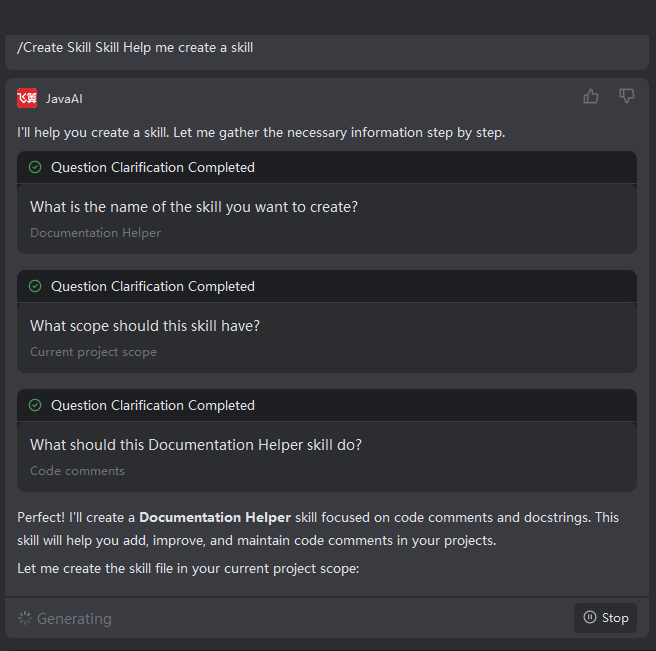
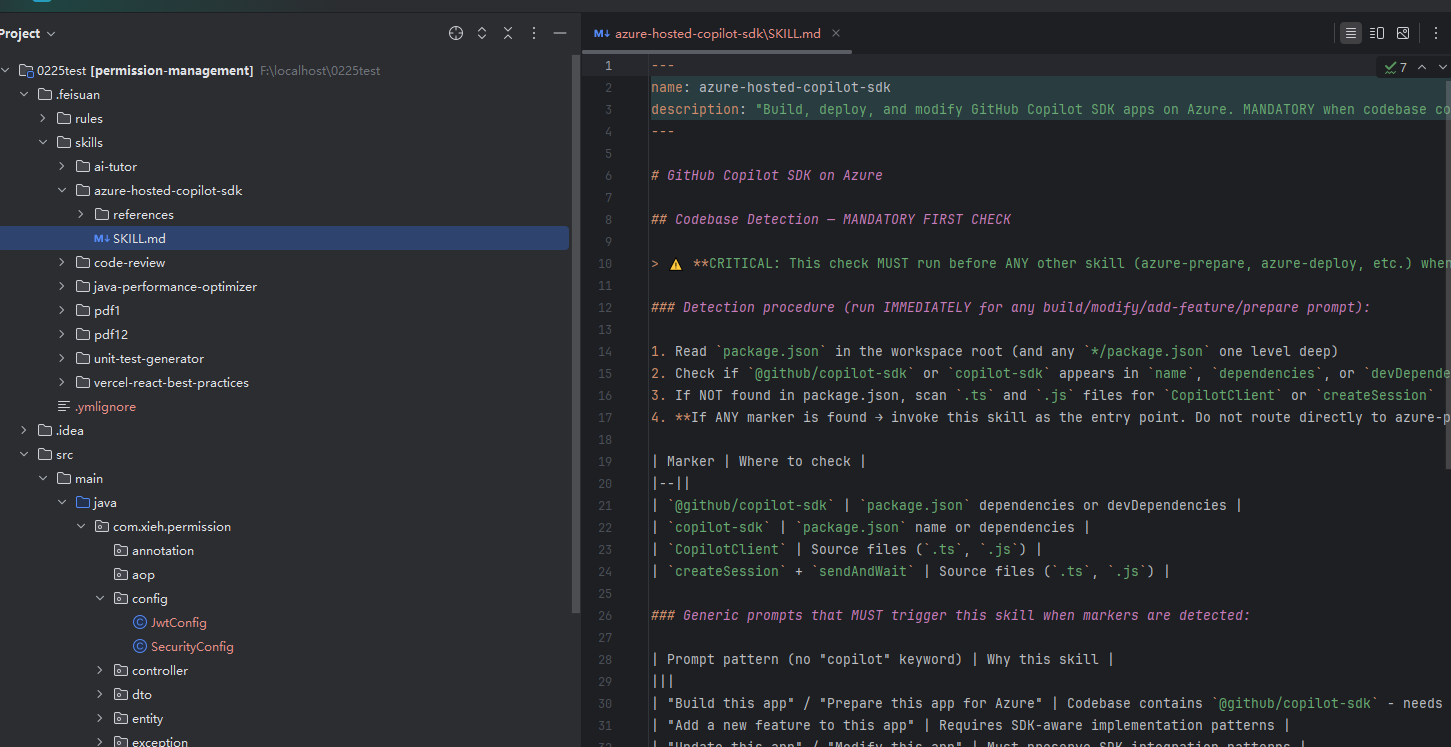
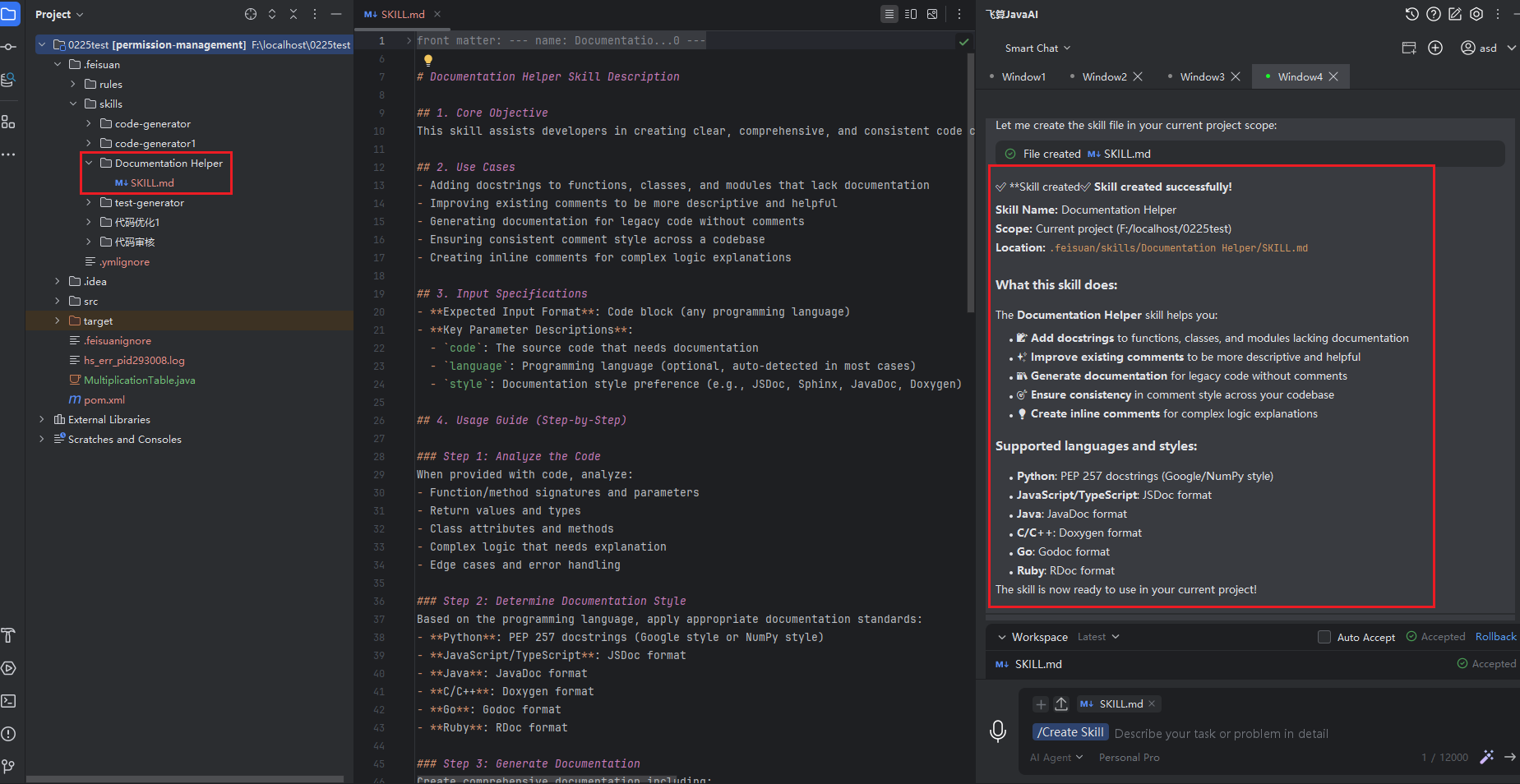
- Once the Q&A is finished, the model will create the skill based on the collected requirements. After the skill is created, you can view and modify the SKILL file.
Note: If the selected skill scope is "Project", the skill will be stored in the .feisuan/skills folder in the project's root directory. If it is "Global", the skill file will be stored in the User Disk/User Directory/.feisuan/skills path.
Using a Skill
Proactive Usage
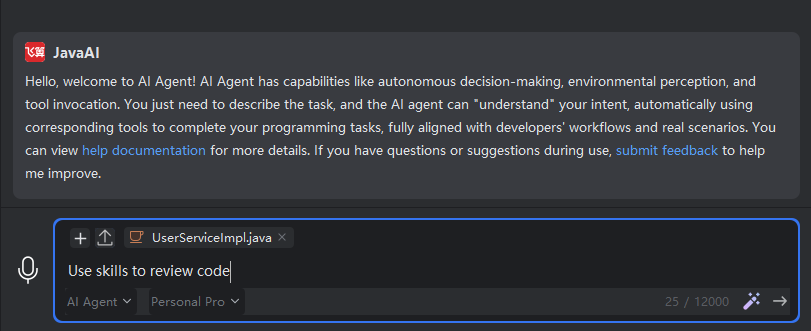
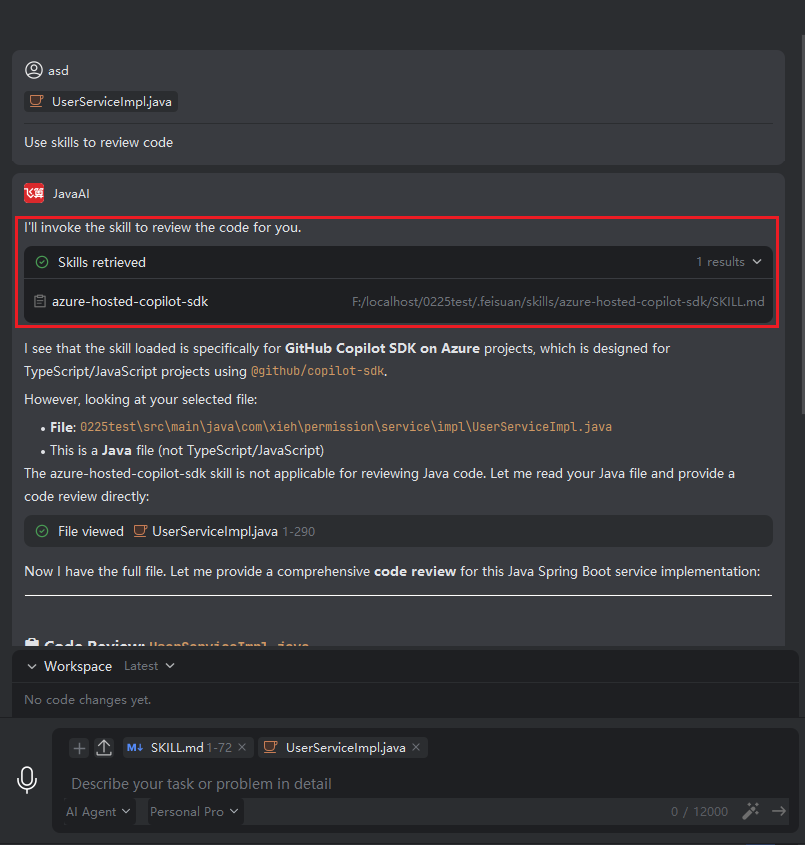
Proactive usage refers to explicitly telling the model in the task description to use a relevant skill to complete a task. The model will then use the skill retrieval tool to find the most matching skill and complete the task, provided that a suitable skill exists.
- Describe in the requirement: "Use a skill to help me review this code."
- The model will retrieve the skill and complete the task based on the skill's description, outputting the result.
Autonomous Selection by the Model
You do not explicitly tell the model to use a skill, but the model will autonomously decide whether to use one. When it retrieves a high match between the task requirements and a skill description, it will automatically use the skill and complete the task based on the skill's instructions.
- Describe in the task: "Help me review the code."
- The model will perform a retrieval match. If a suitable skill exists, it will automatically use it and generate the output based on the skill's instructions.
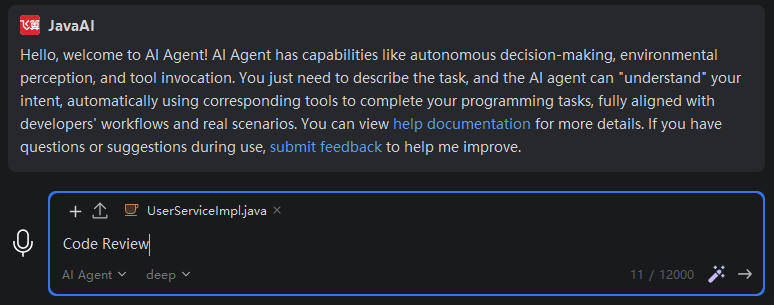
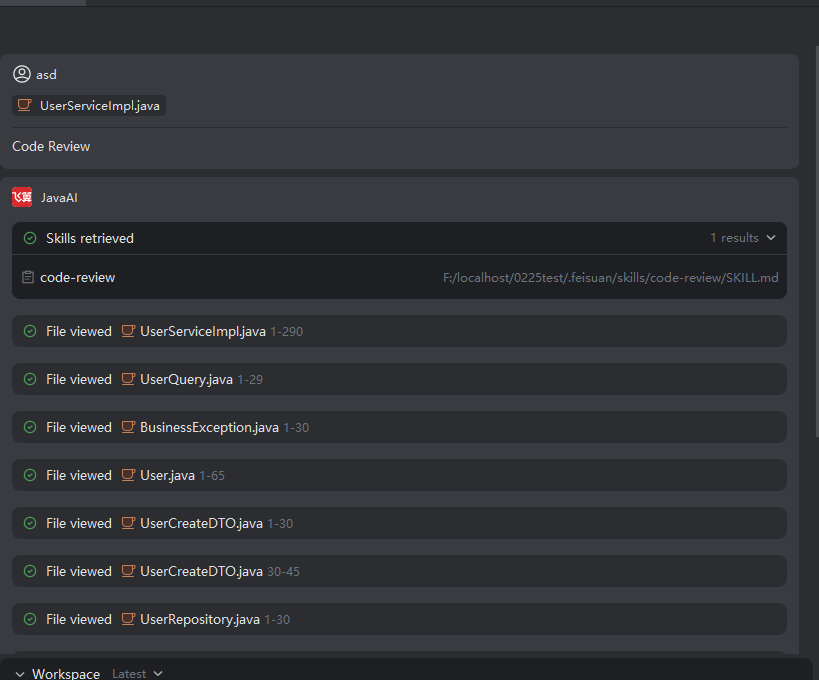
Specify Skill Usage
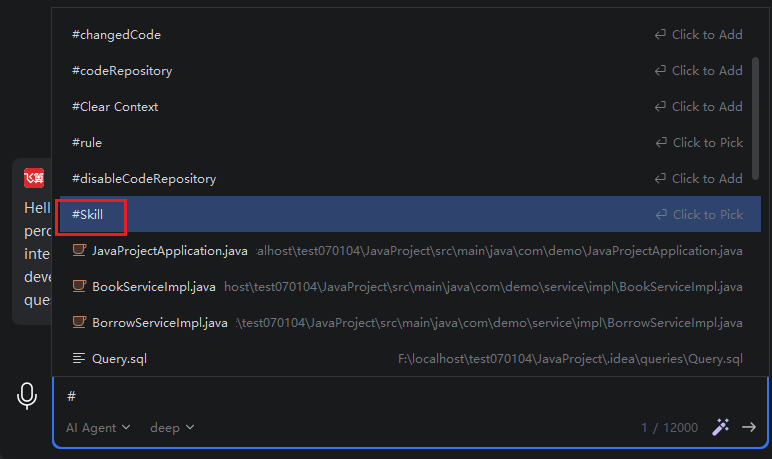
Specify a corresponding skill to let the model complete the task based on it.
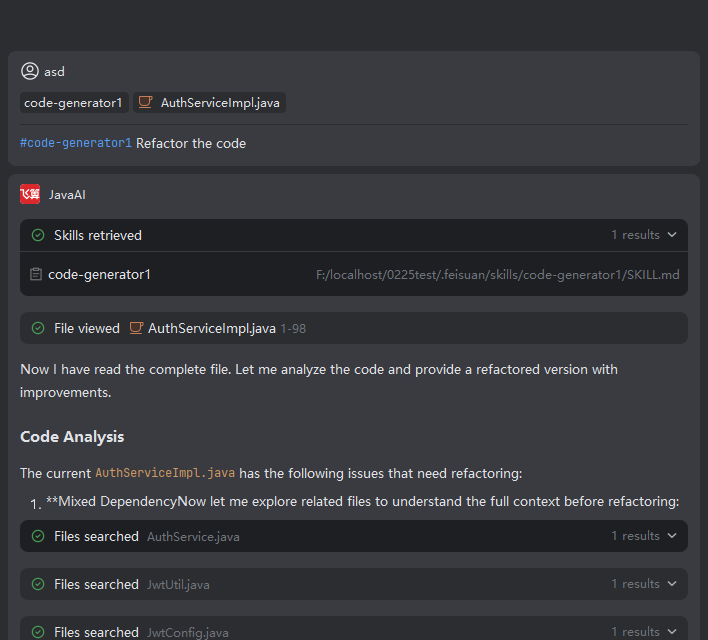
- Type "#" in the input box, select "Skill", then choose the required skill, and enter the task description.
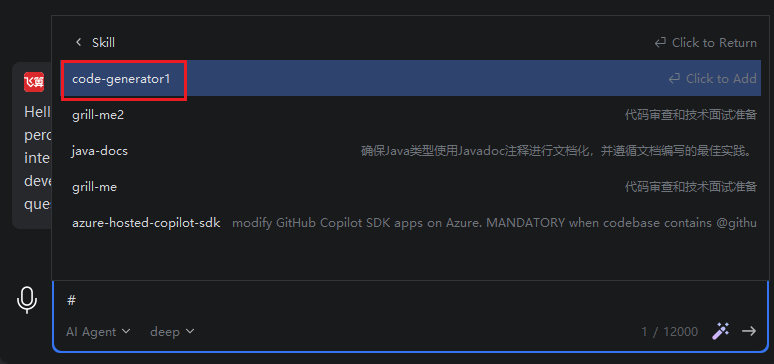
- The model completes the task based on the specified skill.
Not Using a Skill
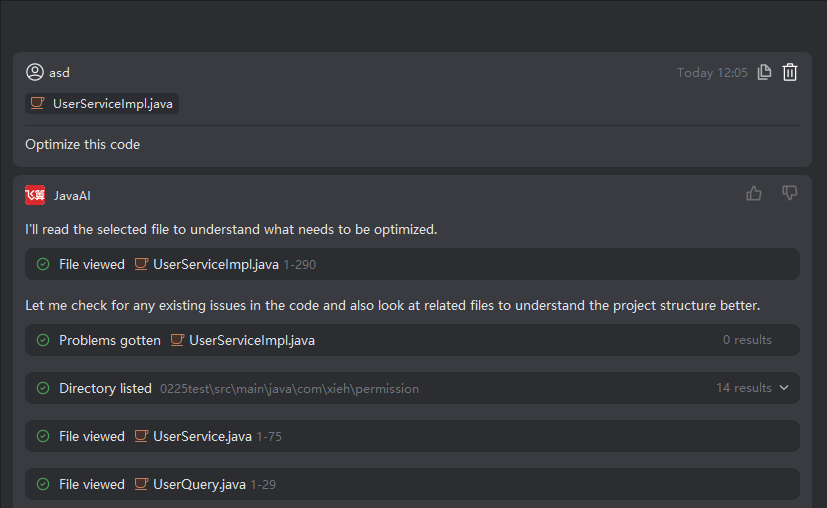
- If the task description does not match any skill descriptions, no skill will be retrieved or used.
Copying a Skill
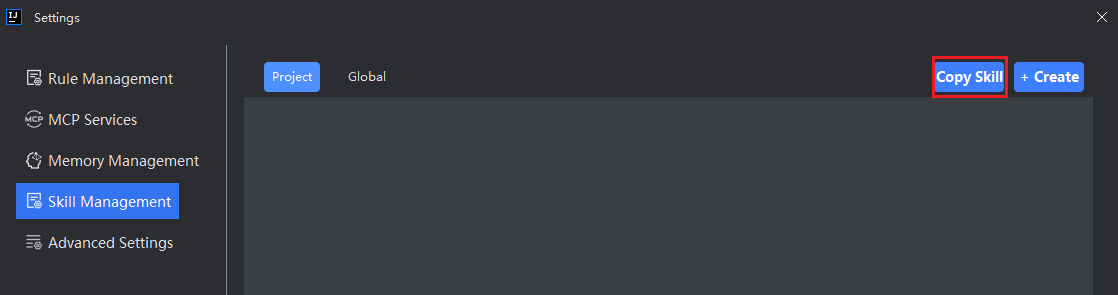
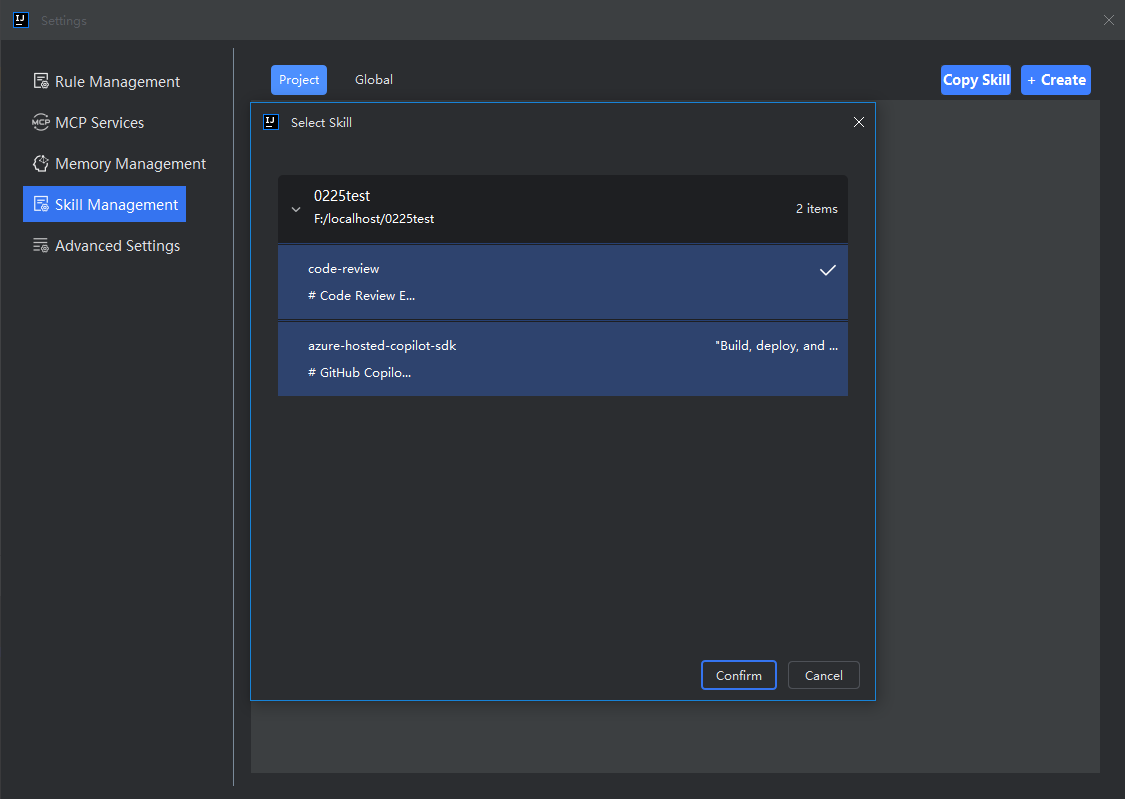
- Copy from another project: Click Copy Skill, select the corresponding project > the corresponding skill, and confirm.
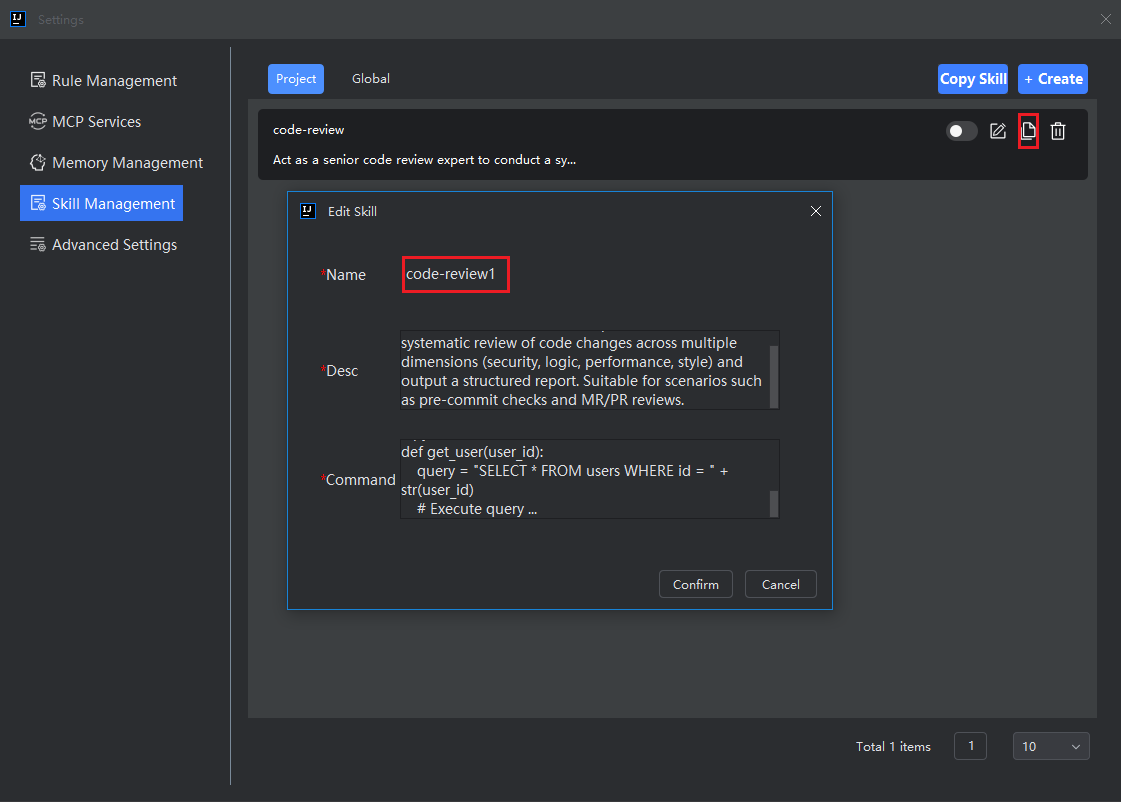
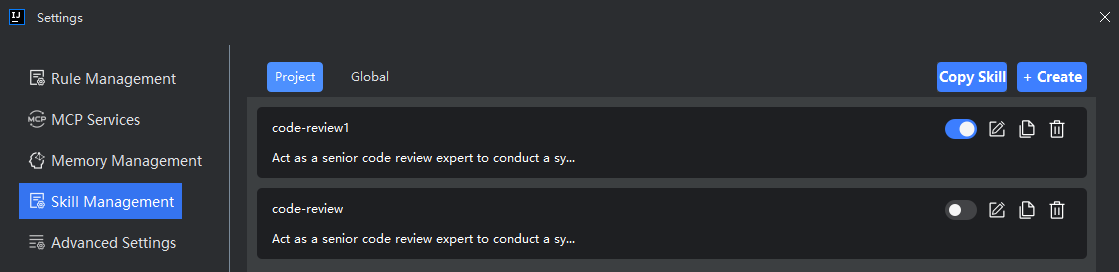
- Duplicate an existing skill: Select the corresponding skill and click Copy.
Disabling/Enabling a Skill
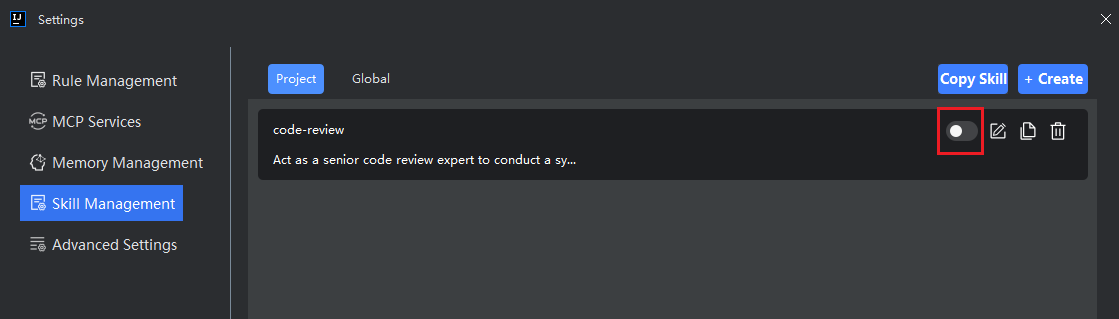
- Click the toggle switch. A lit button indicates it is enabled, and a gray button indicates it is disabled. Disabled skills will not be retrieved or used.
Editing/Deleting a Skill
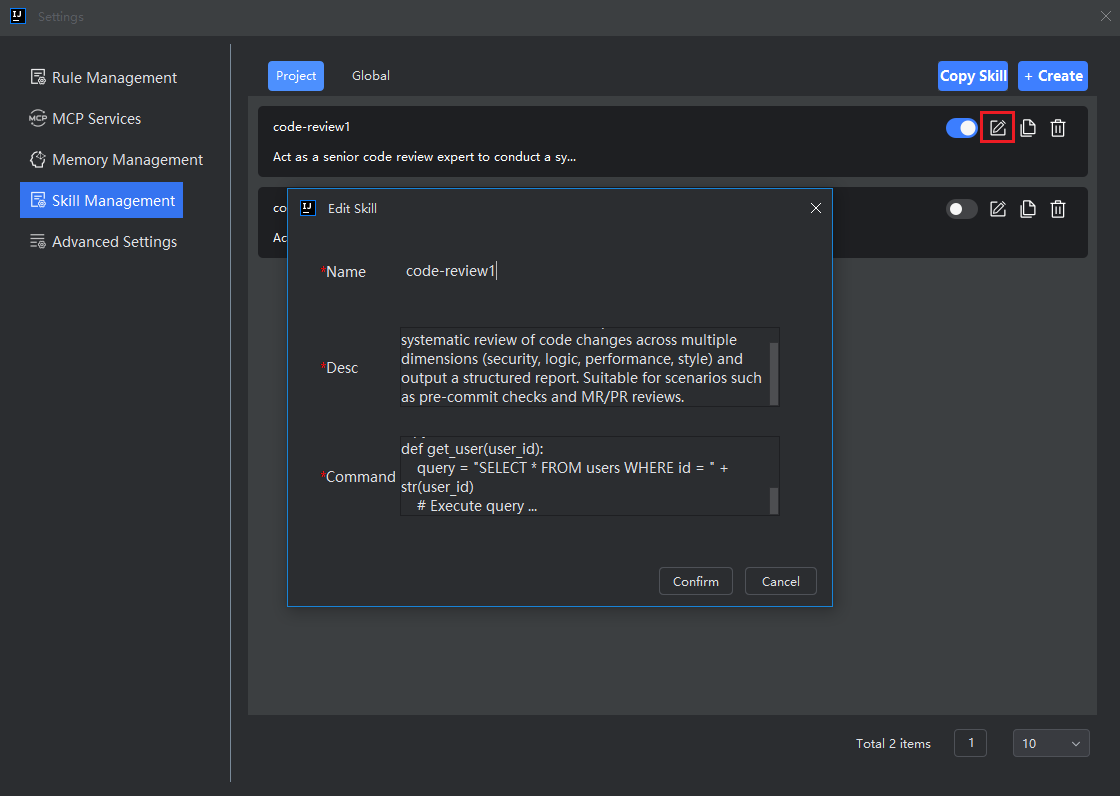
- Click the Edit button to modify the skill, and click OK to save.
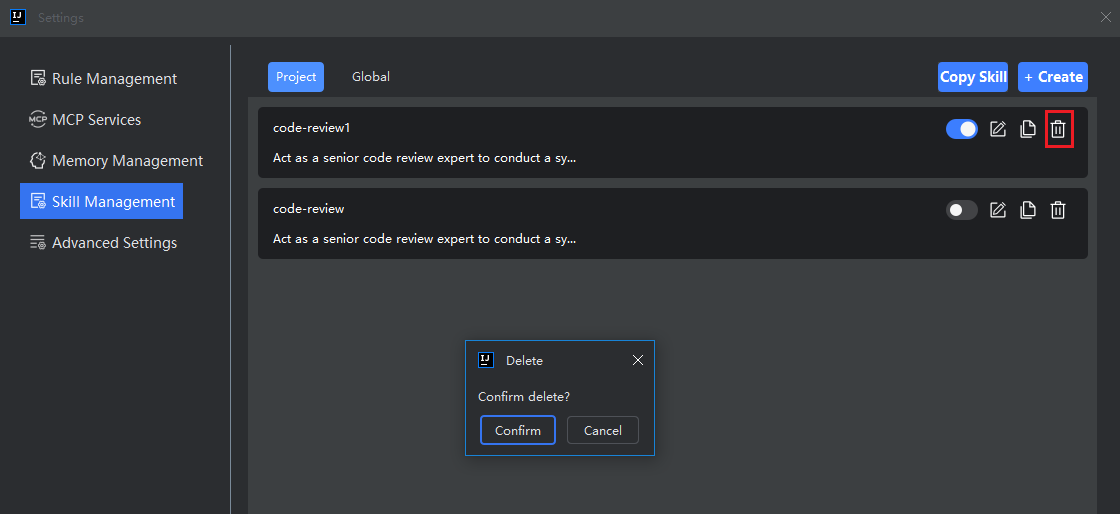
- Click the Delete button to remove the skill. Once deleted, the skill will no longer exist.